

Mute everyone, or one person
In the Participants panel, Mute all turns off every microphone except the hosts' and moderators'.
- To mute one person, open their menu in Participants, or the three dots on their video, and choose Mute.
- The person sees The host muted your microphone. You can turn it back on. and can turn it back on themselves.
- A microphone that is already off is left alone, and nothing here turns anyone's microphone on.
- Hosts and moderators can mute.
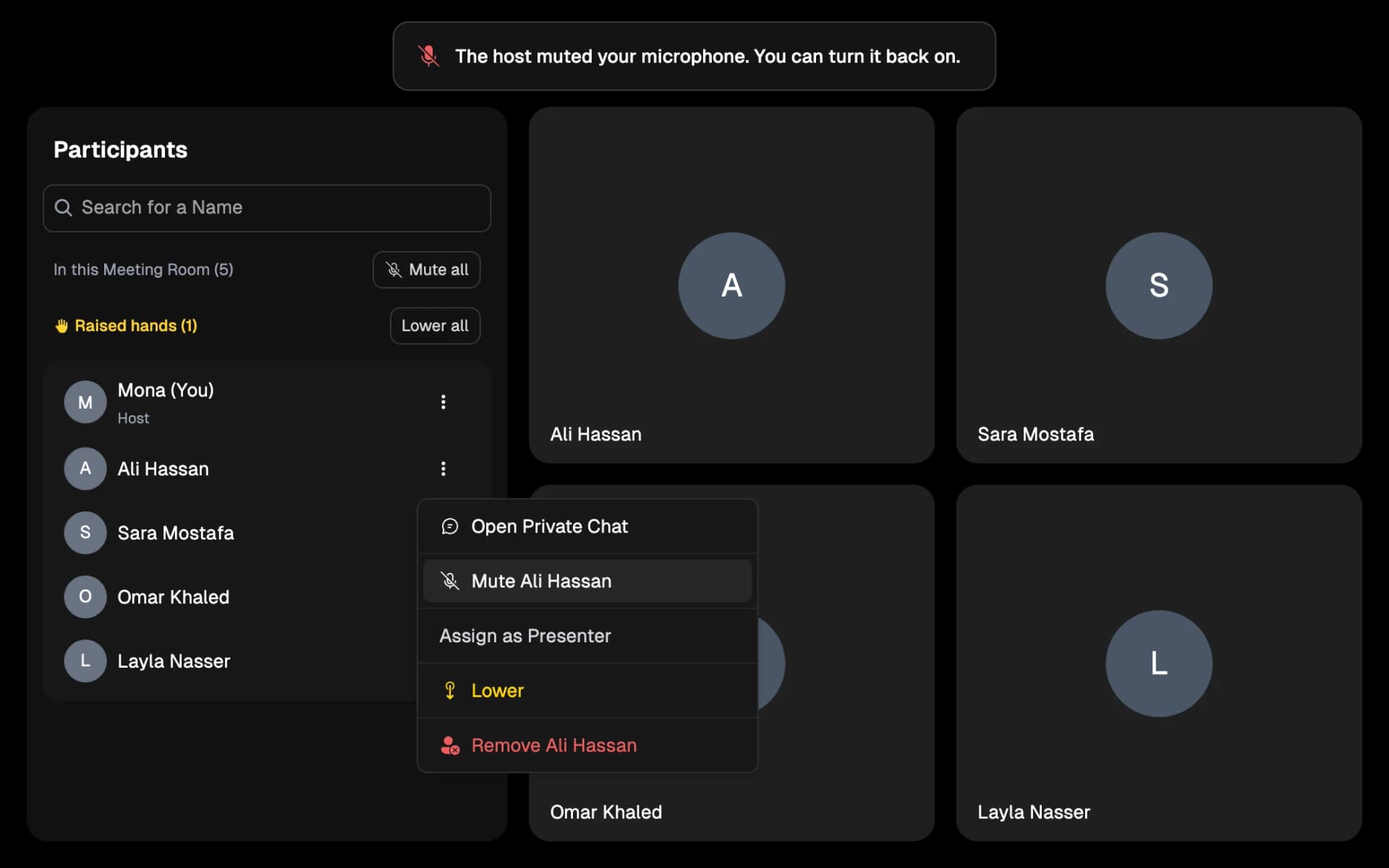
Mute all sits on the count line, and Mute is in each person's menu.
Open full-size screenshot in a new tabSend a message to the waiting room
When the waiting room is on and people are waiting, choose Message above the waiting list in Participants.
- Under Send to, choose Everyone waiting or one person.
- The message appears on their waiting screen as Message from the host, for example, "We start in 5 minutes."
- A message can be up to 500 characters. A message to one person is seen only by them.
- People waiting in the phone app will see the message after the next app update.
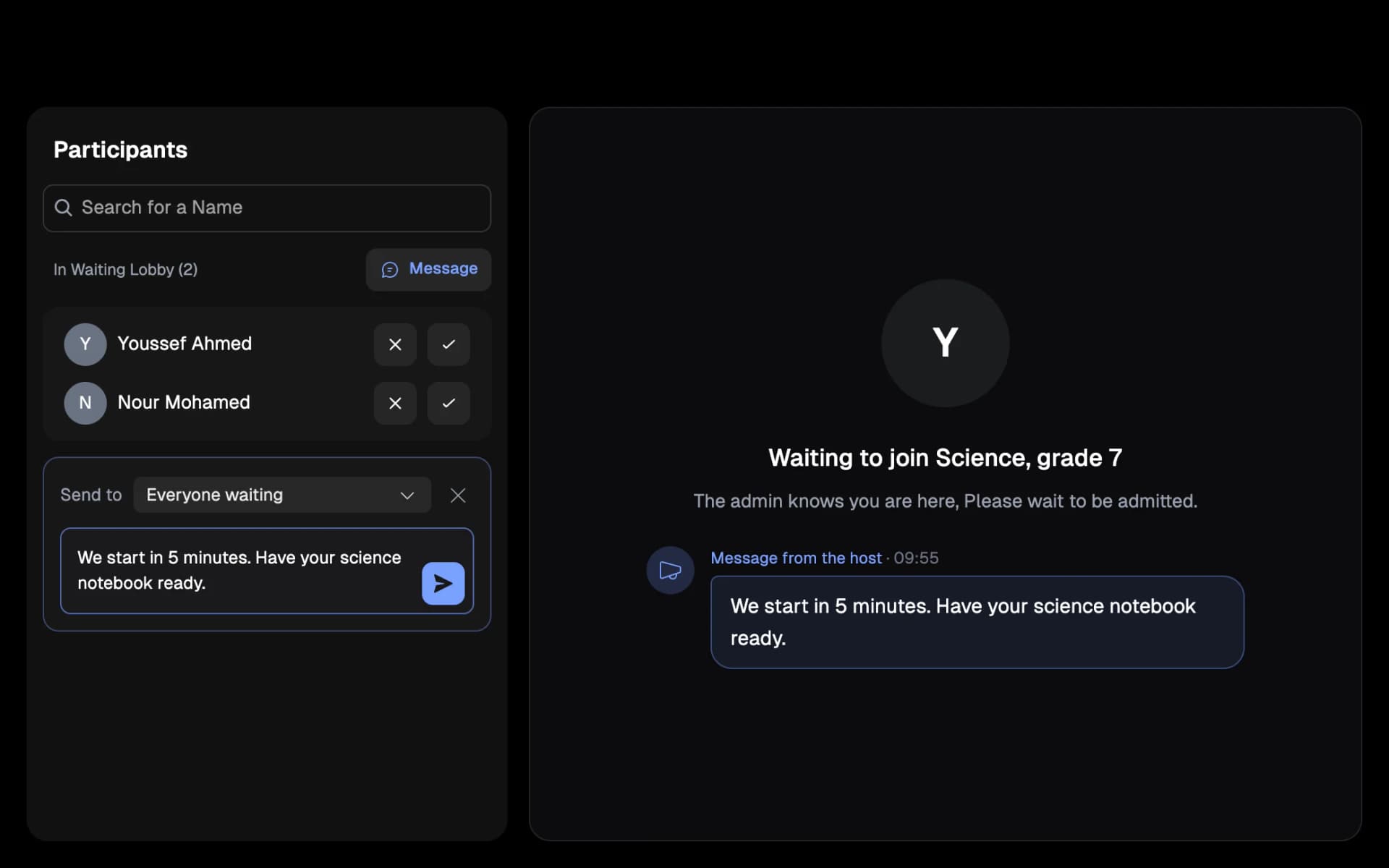
The host writes once, and everyone waiting sees it.
Open full-size screenshot in a new tabName the meeting, and rename it from anywhere
In the meeting: select the meeting's name at the top, then the pencil (Rename the meeting). Type the new name and choose Save. Everyone in the meeting sees it at once and gets a notification. Only the host can rename from inside the meeting.
In the dashboard: the same pencil is next to the meeting's name in the meeting's details and next to Meeting Title in Recording Details.
- It works for a scheduled, a running and an ended meeting. A running meeting shows the new name inside it as well.
- For a repeating meeting, choose This and the meetings still to come or This meeting only.
- Recordings take the meeting's name, so renaming a meeting renames all of its recordings.
From a room link: whoever opens a room's moderator link while nothing is running in the room gets a Meeting name field and a Start meeting button. Left empty, the meeting takes the room's name as before.
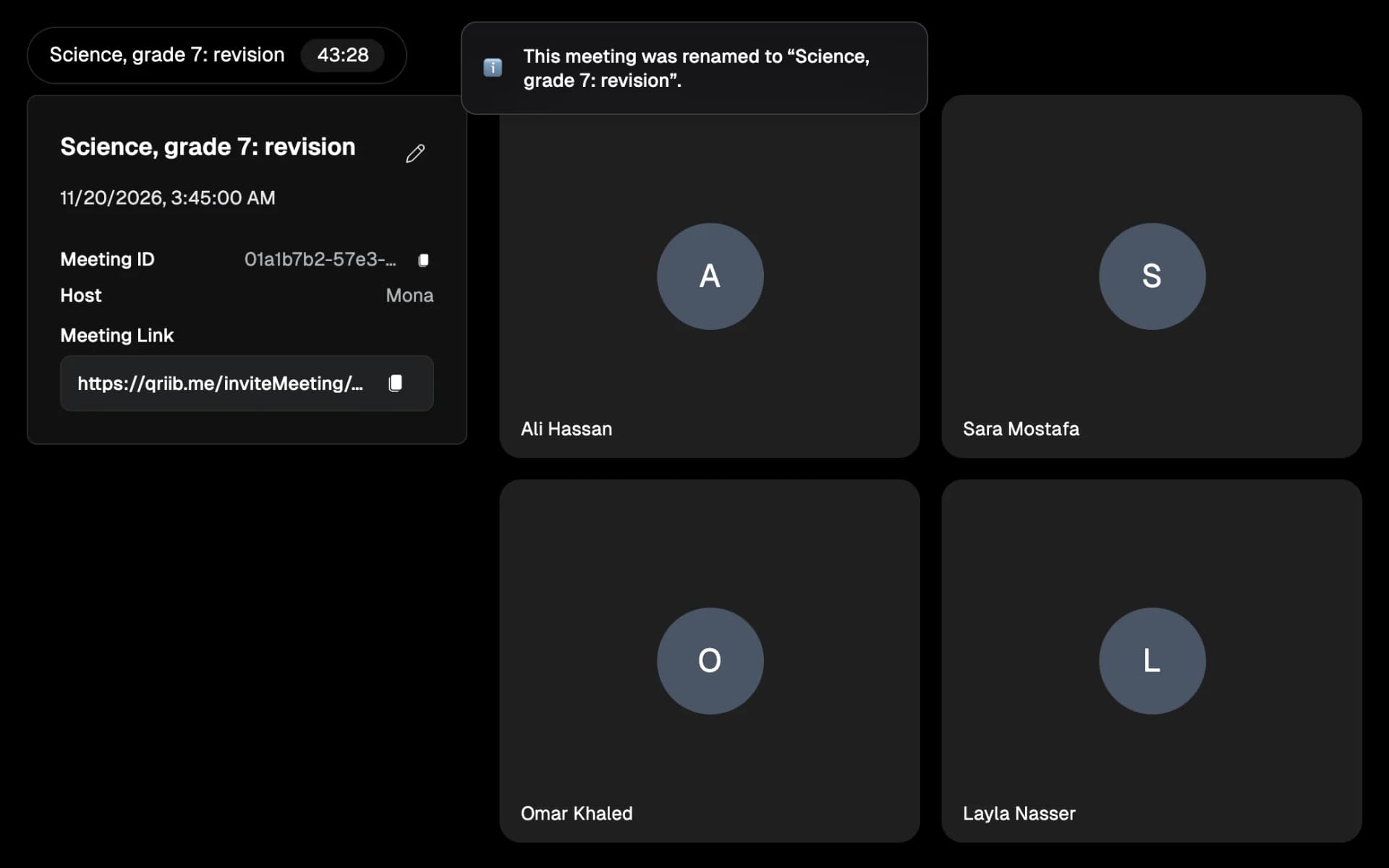
Everyone in the meeting sees the new name, and is told.
Open full-size screenshot in a new tabChoose who can watch a recording
In Recordings, open a recording's details. Who can watch shows how many people can watch it. Choose Manage.
- From the class list shows the students invited to the class, with Edit class list to change it.
- Added for this recording only lists people who can watch this recording without joining the class.
- In Add someone to this recording, type one email or paste many. Each person gets an email with the link.
- They watch with the same email code, and cannot download.
- Each person has Resend to send the link again, and × to remove them.
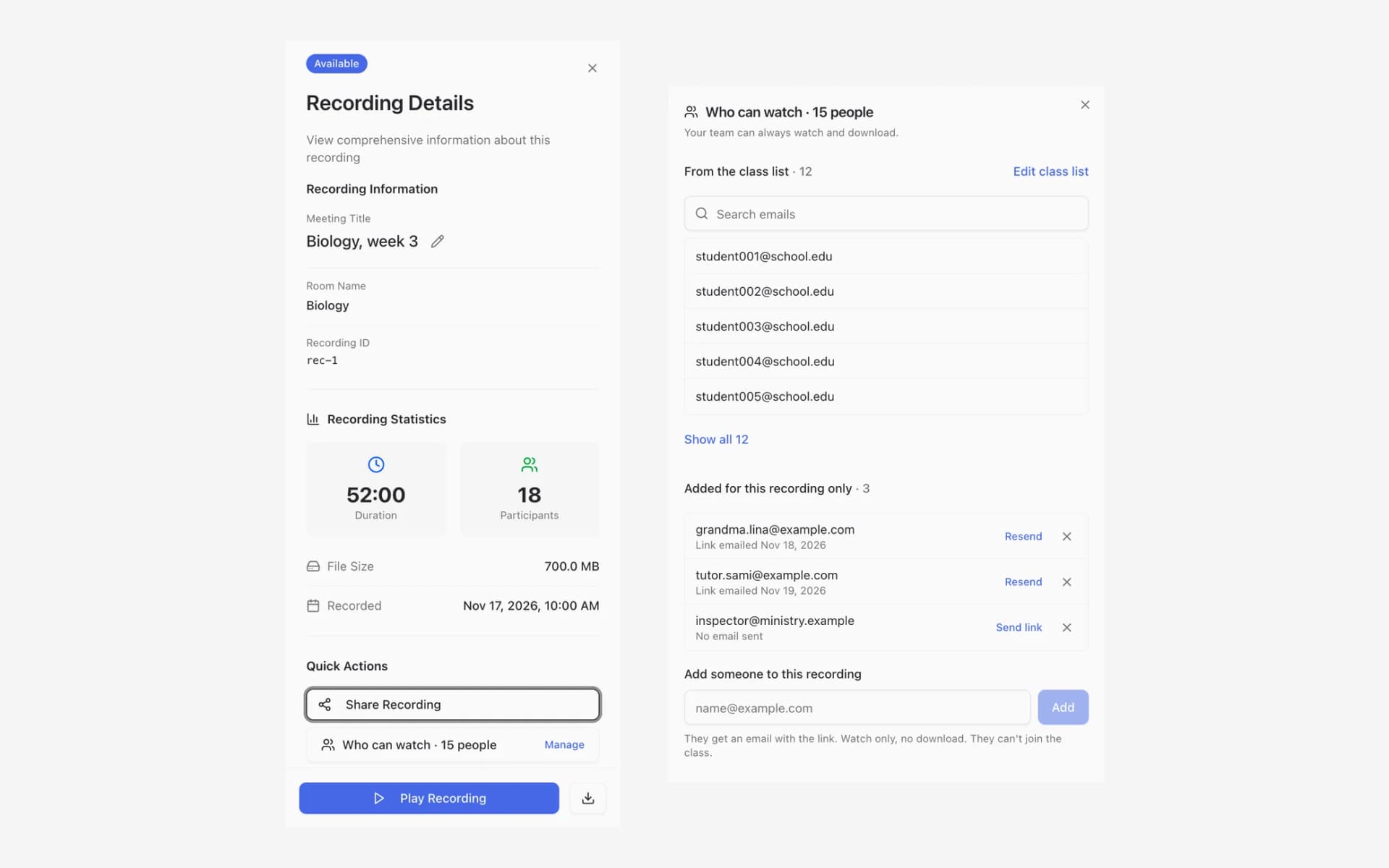
One window shows everyone who can watch, and adds people for one recording.
Open full-size screenshot in a new tabInvite students more easily
Under Only invited people can join in a class's settings, you now see how many people are invited, with Add or edit people. If nobody is invited, a warning says no student can join.
- In the meeting's details, the add button on the Invitees tab opens Invite people to this class.
- Your organization: search by name or email, tick people and choose Invite. People already invited show Already invited.
- By email: type one email or paste many, for students outside the organization.
- During a class, the same window is in the three dots as Invite people. People you invite can join straight away and get the link by email.
- Each invitee has Resend, once a minute. You can remove someone from the Invitees tab before the class starts.
- The class's host and the organization's owner or admin can invite.
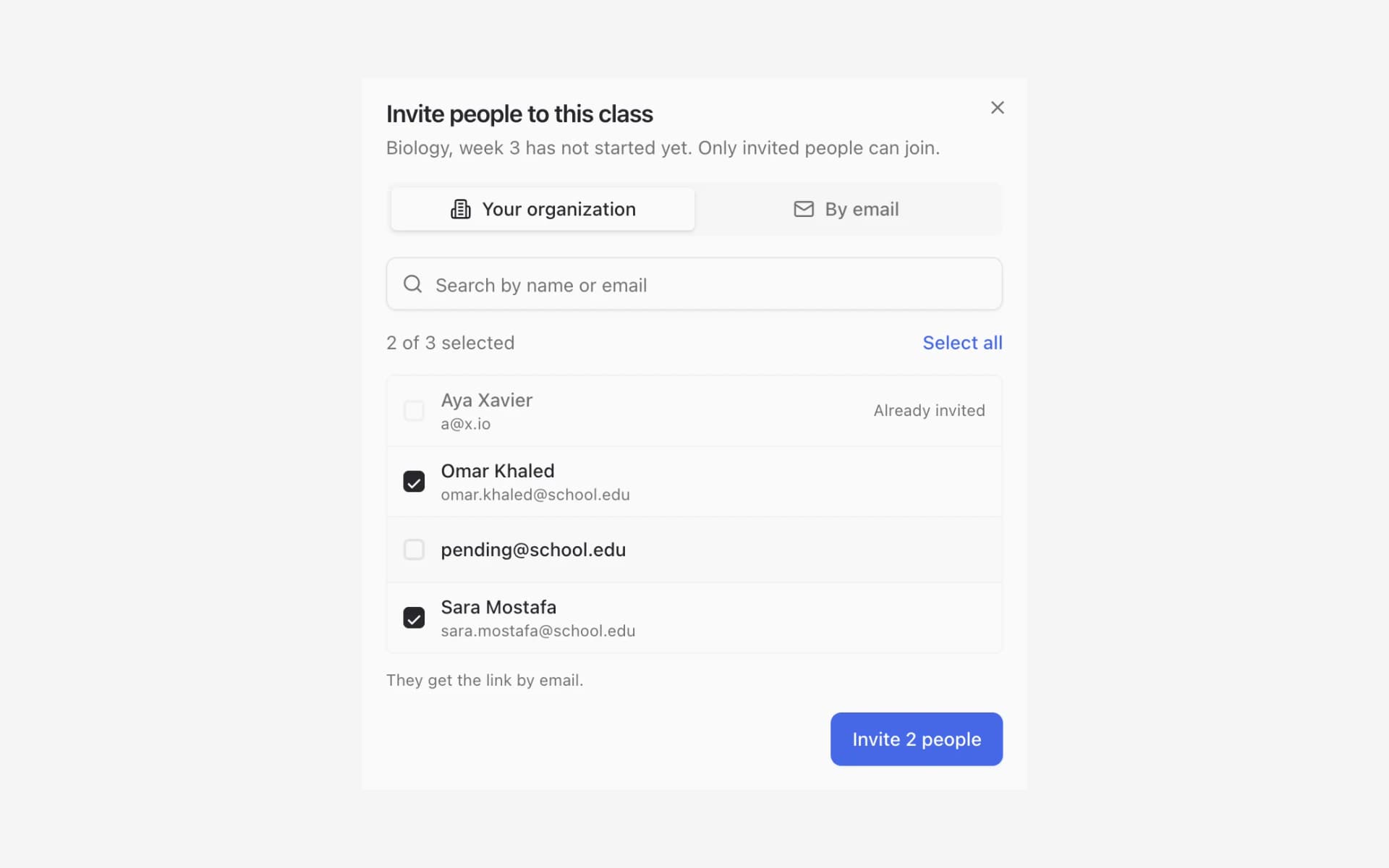
Invite colleagues by name, or anyone by email.
Open full-size screenshot in a new tabEmail room invitations
In a room's settings, the Invite list is now right under Only invited people can join.
- Email the room link to people I add is on by default: people you add get the room link by email when you save.
- People who were already on the list are not emailed again. Each person has Send link to email them.
- Only the organization's owner or admin can email room invitations.
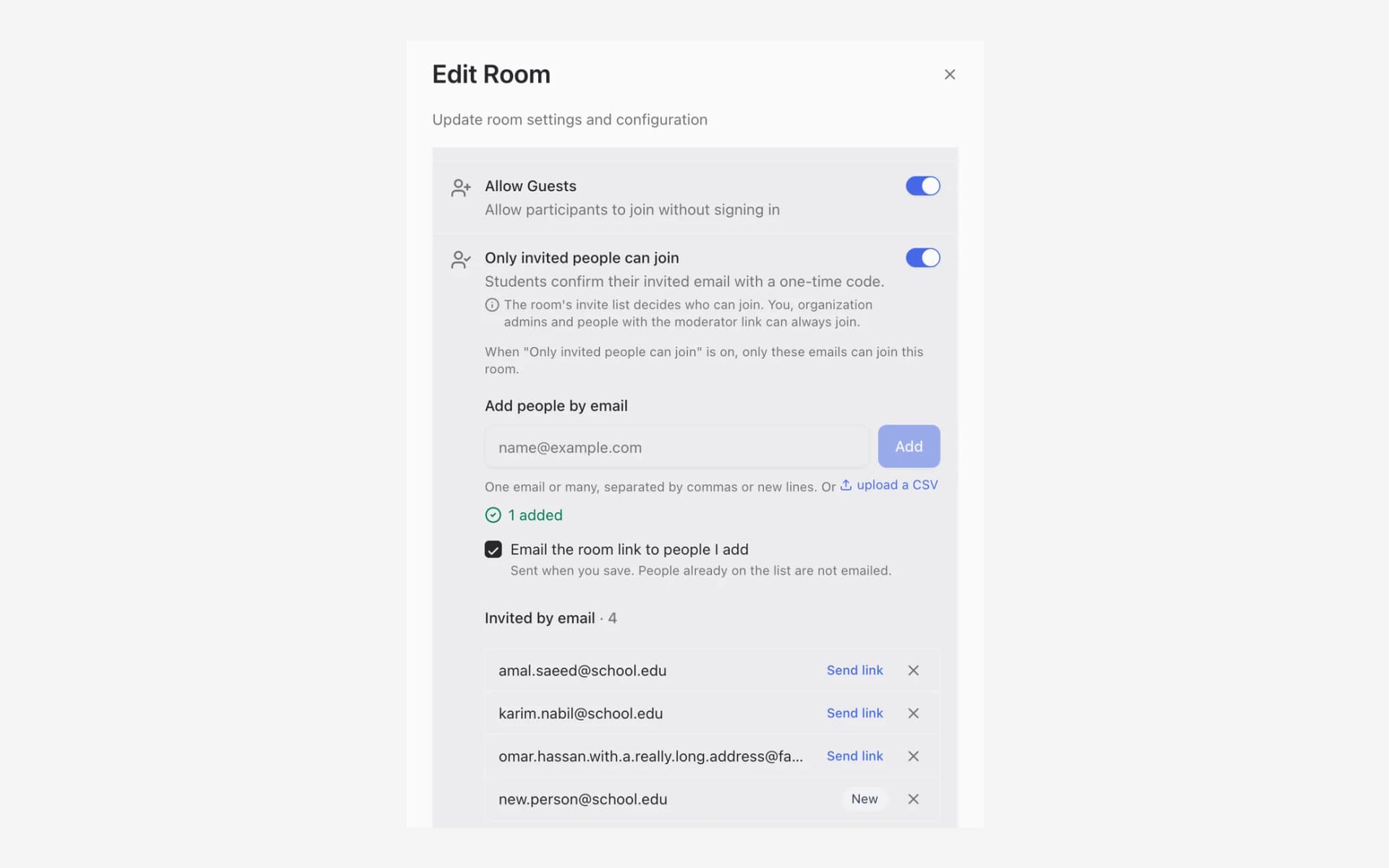
People added to a room get its link by email.
Open full-size screenshot in a new tabSmall tools in the meeting
- Copy chat and Save chat at the top of the chat copy the whole chat, or save it as a text file.
- Hide self view in Adjust view hides your own video from your screen. Others still see you.
- Download page as image in a shared file's download menu saves the page on screen as an image, with or without the drawings.
Smaller improvements
A few fixes in the meeting:
- Starting a recording no longer fails with Token has expired in a long meeting.
- Waiting room and Mute on entry now have icons in the meeting settings.
- Mute all and Lower all are smaller and quieter in the Participants panel.
- Waiting for others to join now takes the size of a normal video tile.