

Set up breakout rooms in one place
Choose Set up breakout rooms, choose how many rooms, assign the students, then open Room settings.
- Time limit sets how long the rooms run.
- Files gives each room a PDF from the class materials: the same file for every room or a different one, and the whole file or only the current page.
- Students pick a room lets students choose their own room and move between rooms.
- Notes come back and Drawings come back bring each room's notes, drawn files and whiteboards back to the main room.
- Follow main locks keeps drawing or the notepad locked in a student's room if it is locked for them in the main room.
- Start & Save Rooms Setup opens the rooms and keeps the whole setup for the next class.
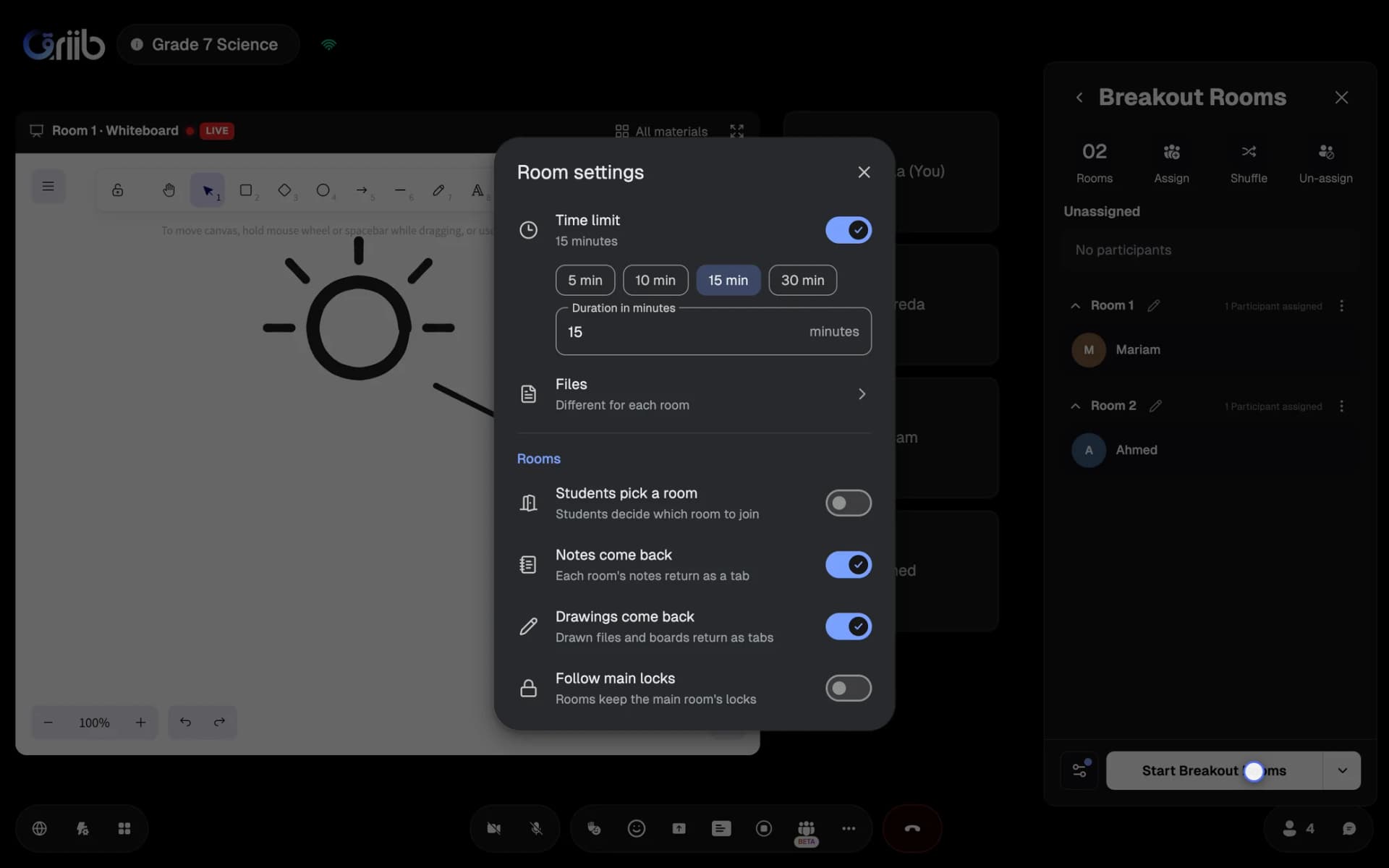
Every room choice is in one window, and the setup is kept for the next class.
Open full-size screenshot in a new tabEach room works like its own class
Every room has its own presenter: the teacher if they are in the room, otherwise the main room's presenter, otherwise the first student who joins.
- The room presenter shows files and adds a PDF, a video or a link. A video plays for everyone in the room together.
- Each room has its own Shared Notepad, with tabs, and its own Polls. Other rooms cannot see them.
- Everyone in the room can draw on the room's file and on its whiteboard.
- The room presenter can run the Exercise timer. It never runs past the time the rooms close.
- The presenter can pass the role to someone else in the room, and the teacher can change it at any time. If the presenter leaves, the role goes back to the person before.
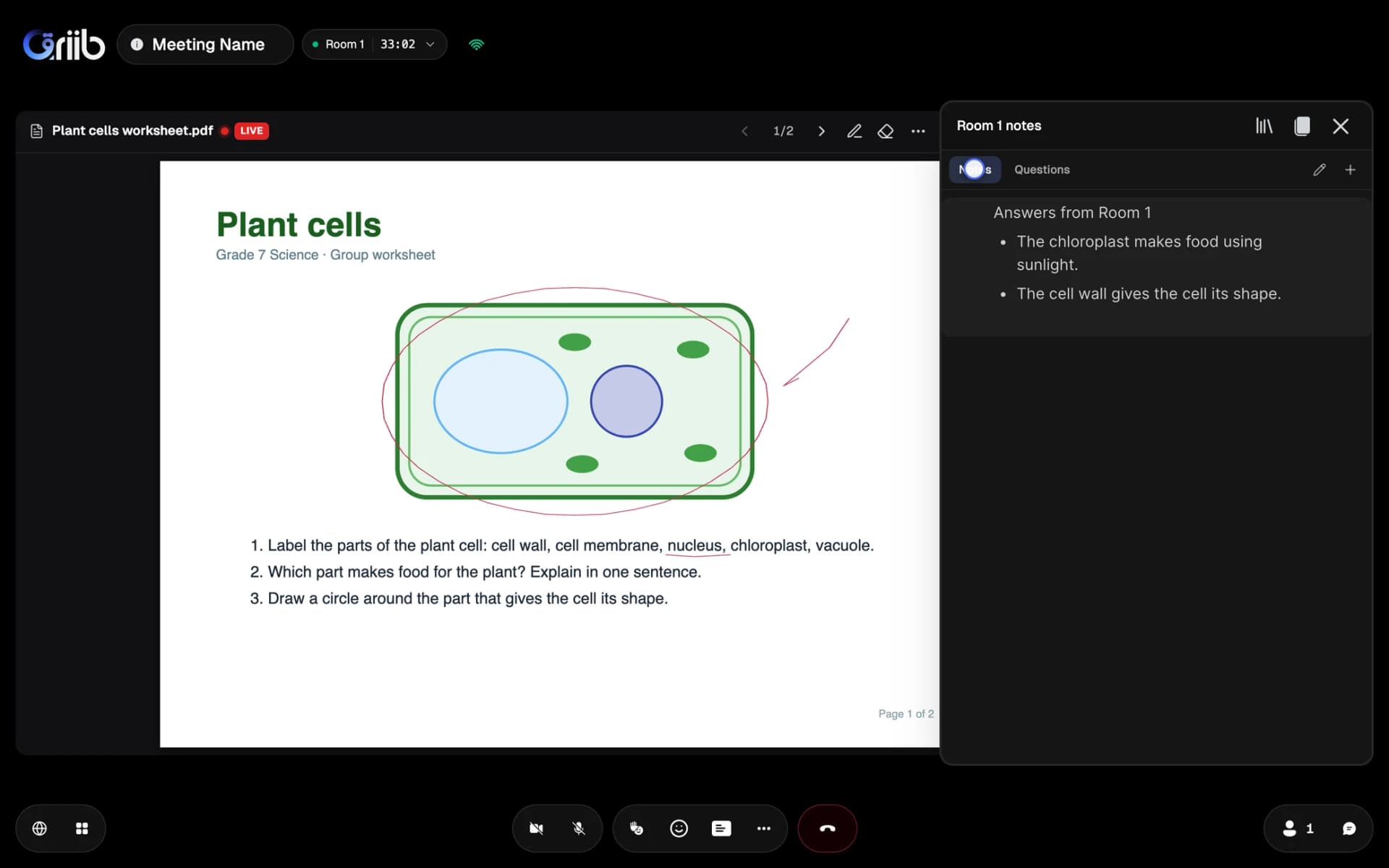
A room has its own file, notes, polls and whiteboard.
Open full-size screenshot in a new tabCall the teacher, and listen in
From the room menu, a student chooses Call teacher. The teacher sees a card at the bottom of the screen with the student's name, the room and Join.
- The student sees Teacher called and can call again after 30 seconds. A call nobody answers clears after two minutes.
- The teacher joins the room with one press, from the card or with Join room in the breakout panel.
- Listen to room lets the teacher hear a room without joining it. Students see that the teacher is listening.
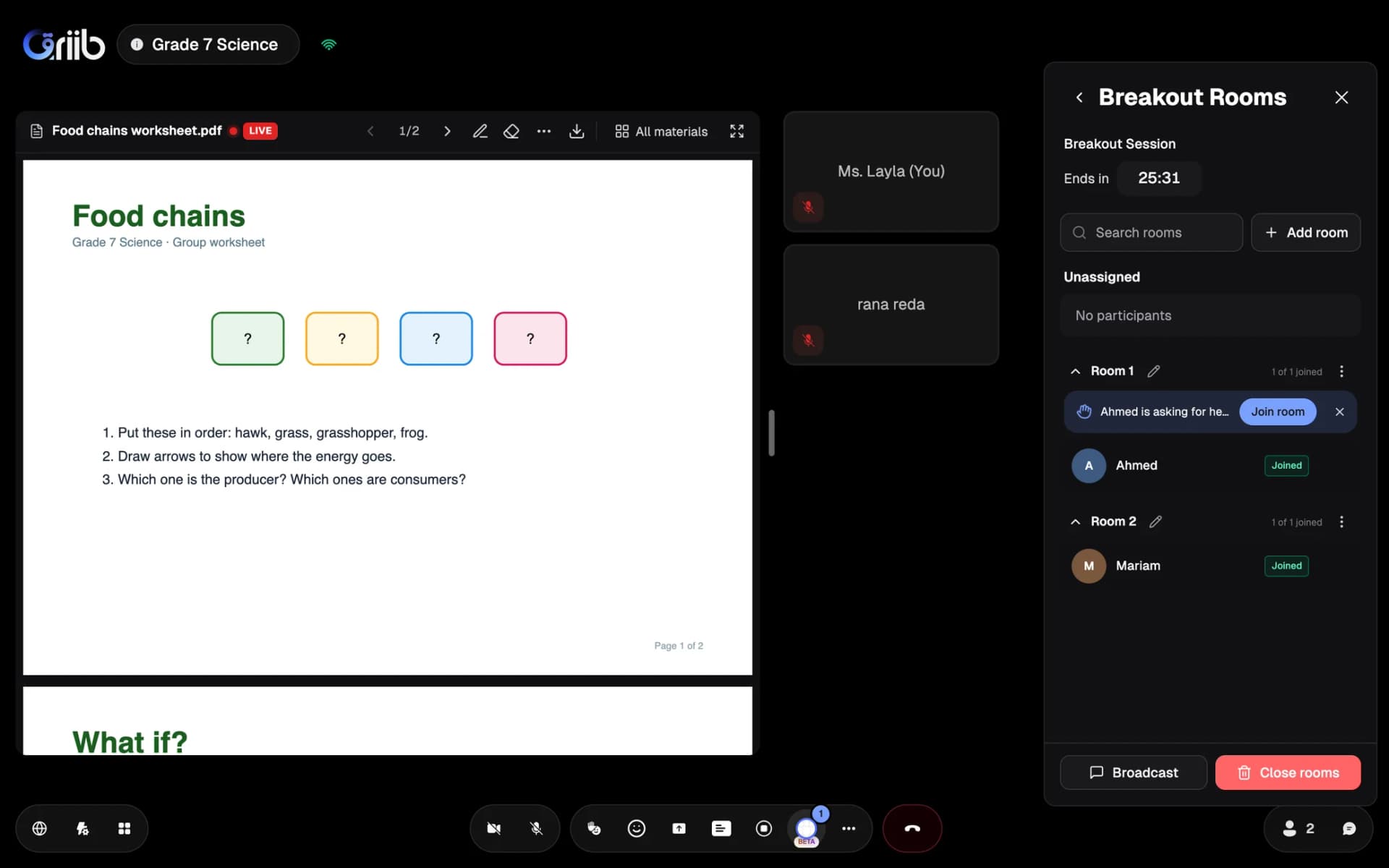
The teacher sees who is calling and from which room.
Open full-size screenshot in a new tabGroup work comes back to the class
When the rooms close, their work returns to the main room as tabs.
- Each room's notes come back as a tab in the main room's Shared Notepad, named after the room.
- A PDF drawn on in a room comes back as a full PDF copy, named for example Room 1 · Plant cells worksheet.pdf. The drawing stays editable.
- A whiteboard drawn on in a room comes back as a whiteboard tab. Boards nobody drew on stay behind.
- The main room's screen does not change by itself. The teacher opens what they want to show.
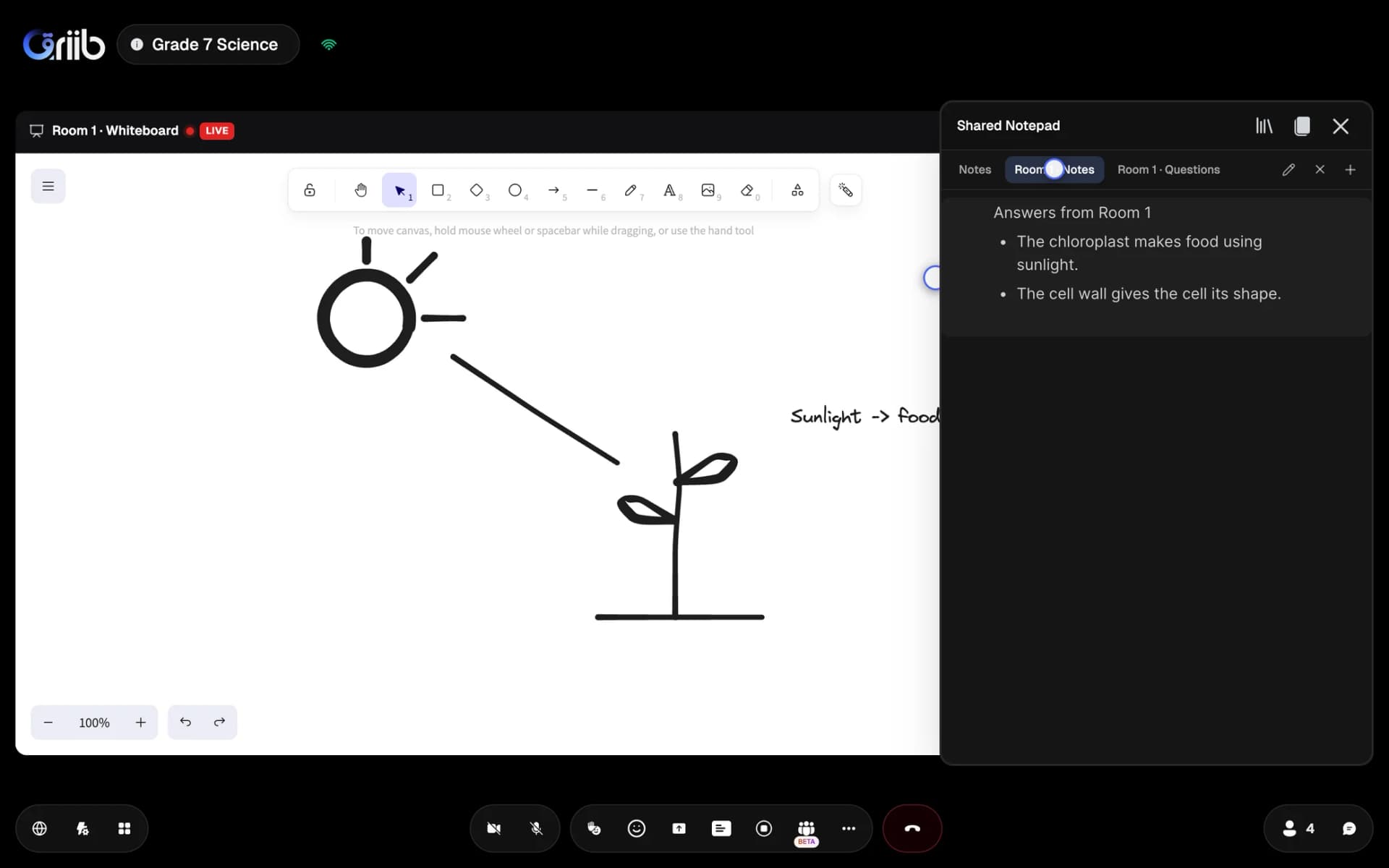
Room 1's whiteboard and notes are back in the class.
Open full-size screenshot in a new tabClasses for invited students only
In the class or room settings, turn on Only invited people can join, and add the students' emails to the invite list.
- A student opens the invite link and enters their email. A 6-digit code arrives by email, and the student joins with their name as it is on the list.
- The same browser is remembered, so the student does not need a new code for every class.
- Removing a student from the list removes them from the class. A student added during the class can join straight away.
- Each email has one seat: joining from another device signs out the first one.
- The teacher and the moderator link join without a code. On the phone app, students join with their account when their email is on the list.
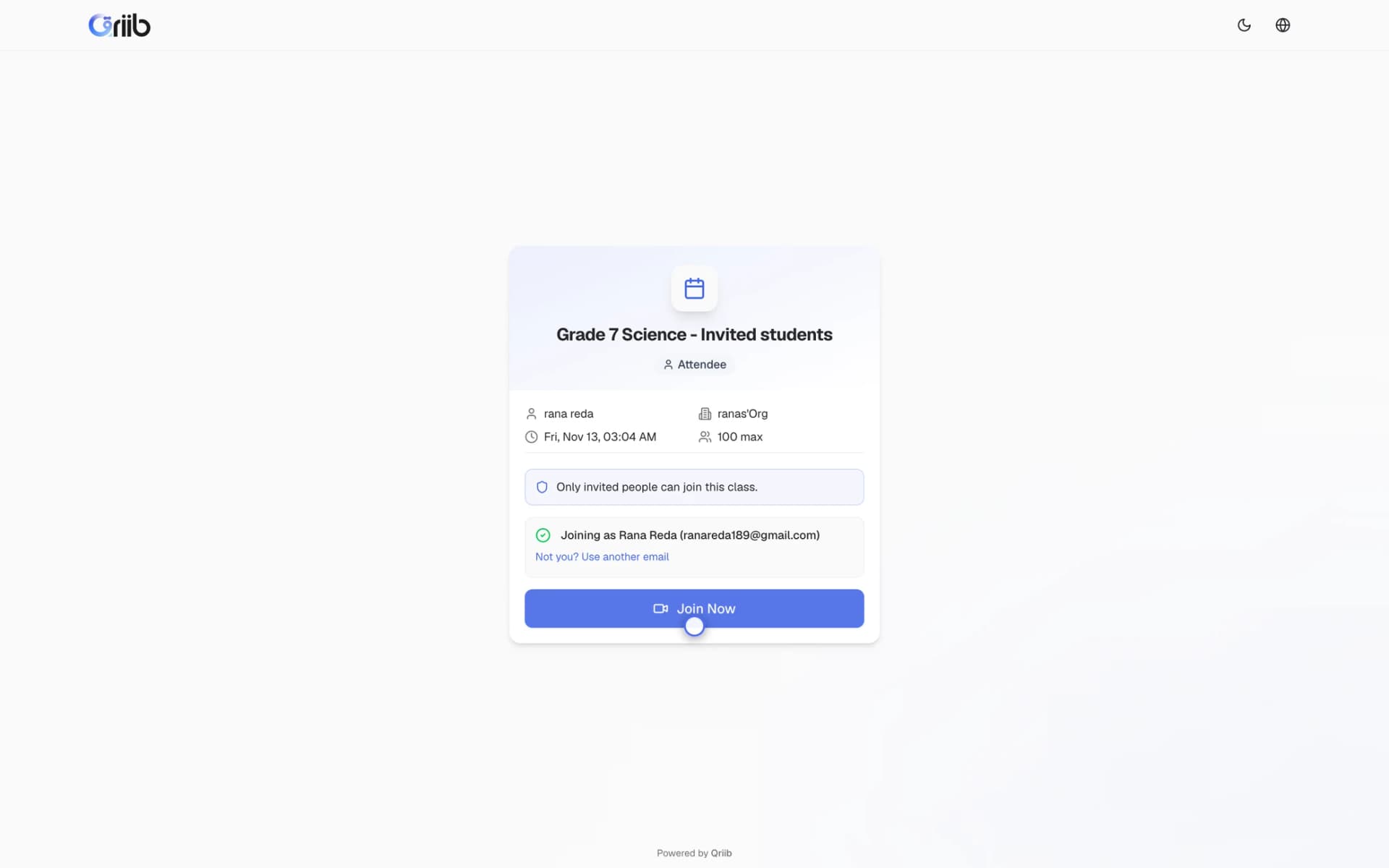
The student joins with the name on the invite list.
Open full-size screenshot in a new tabPrivate class recordings
Play Recording opens the recording's page, and Share Recording copies the page's link, not a link to the video file.
- Students on the class list watch with the same email code, without a download button.
- Download is for teachers and staff only.
- A student added to the list after the class can watch straight away. A student removed from it cannot.
- Links to the video file itself are short-lived, so a copied link stops working.
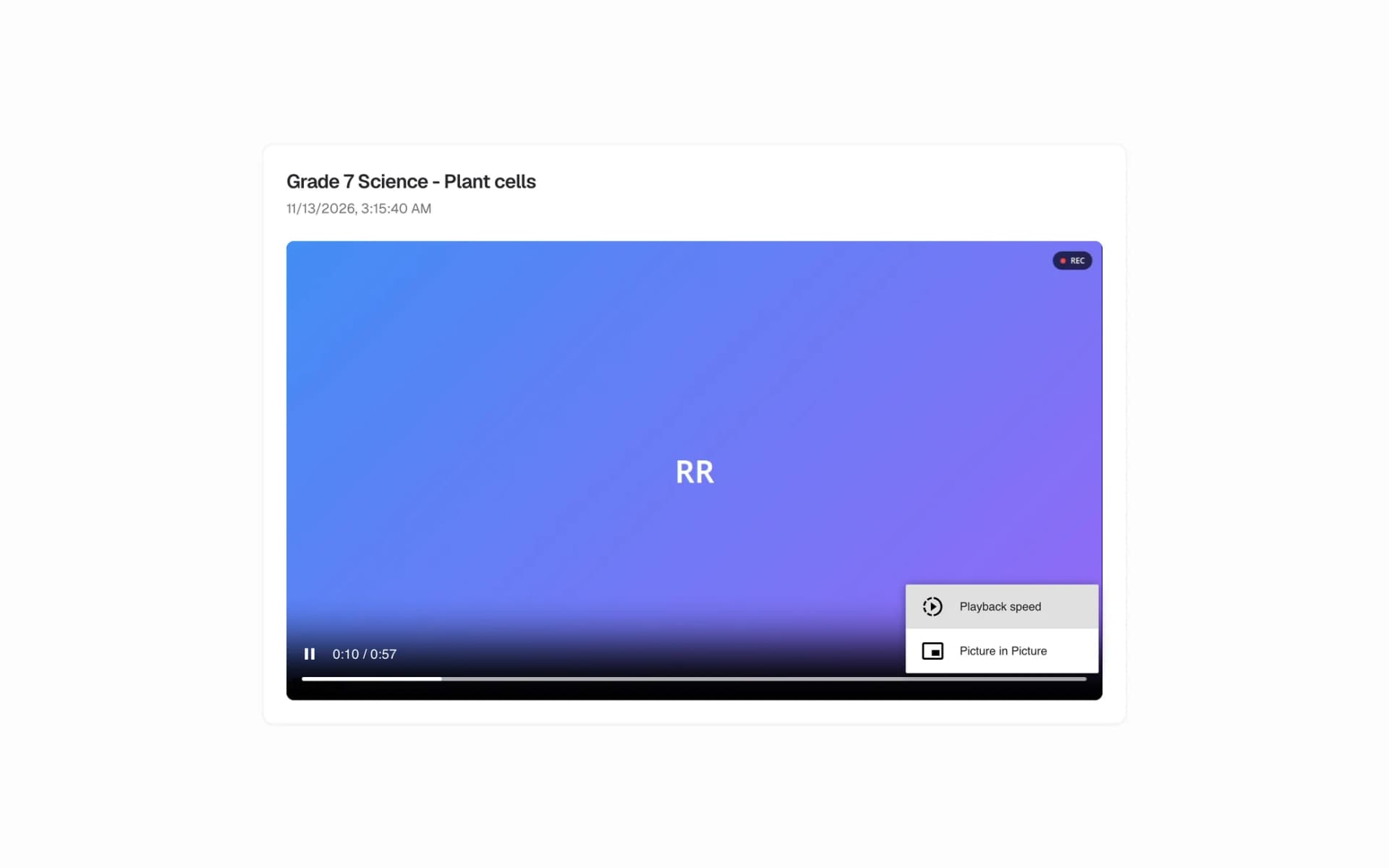
Students watch the recording without a download option.
Open full-size screenshot in a new tabSmaller improvements
A few fixes in the meeting:
- Browser translation no longer rewrites participant names, chat messages or device names.
- The join page now says You're joining the meeting.
- Long names and titles stay inside the meeting info card.
- Connection lost shows only when a drop lasts, not on every reconnect.
- Theme colours show correctly on older browsers.