

Schedule a recurring class once
In Meetings, choose Schedule and turn on Make this recurring. Choose how it repeats, on which days, and how many classes. A preview shows how many classes will be created and their dates before you save.
- Every class is created at once as one series, and invitees receive a single invitation for the whole series.
- The series invite link opens the class that is on now, or the next one.
- In Meetings, a series is one row (for example, Class 2 of 10). Expand it to see all its classes in a scrolling list.
- When you edit or delete a class, choose This class only, This class and the ones after it, or All upcoming classes in this series. A new time moves every class by the same amount, and invitees receive one email about the change.
- Past classes keep their attendance and recordings.
- The calendar now shows every class in the month, however many there are.
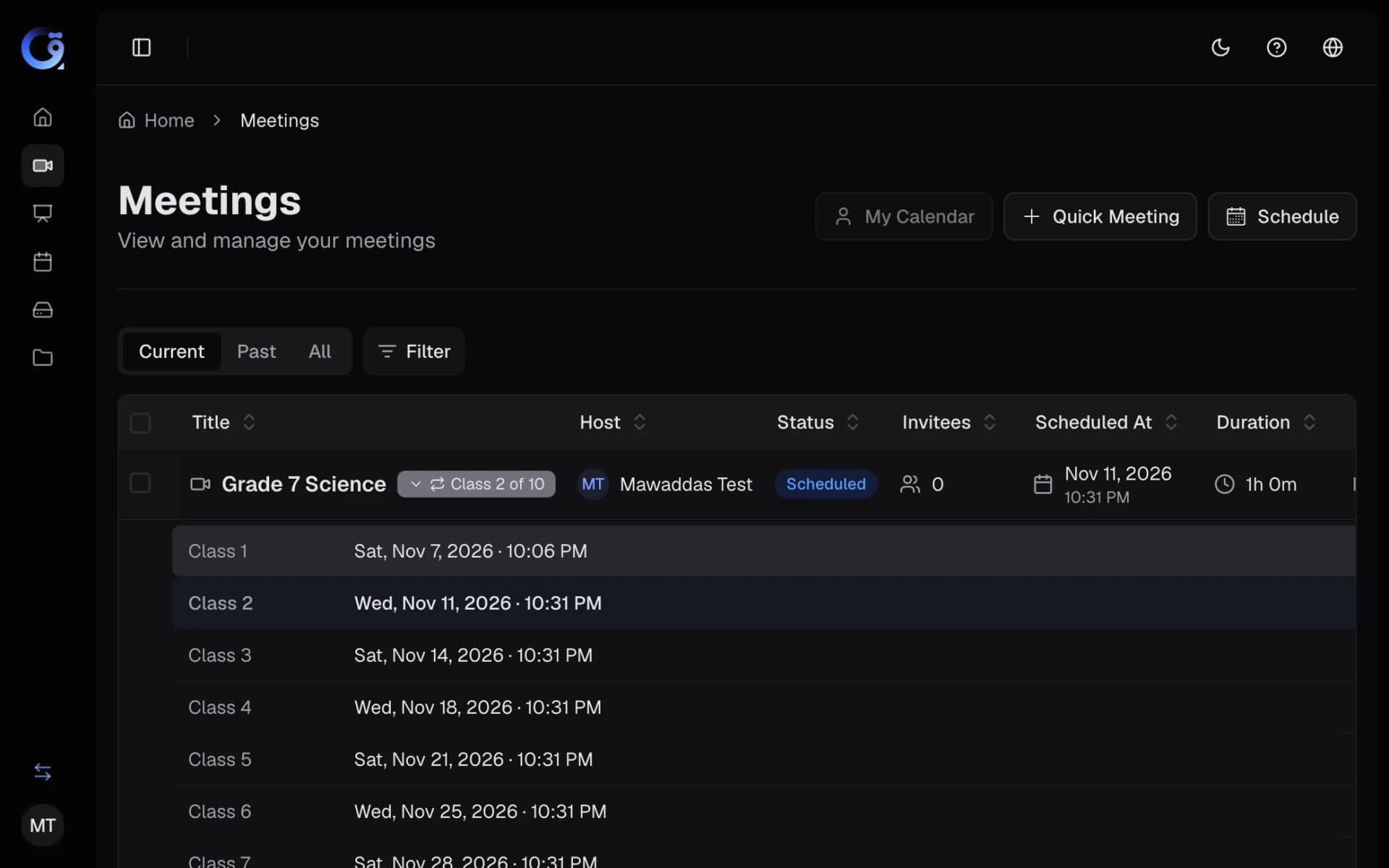
A series is one row in Meetings. Expand it to see every class.
Open full-size screenshot in a new tabPrepare a class's materials before it starts
When you schedule a class, open the Materials tab and choose Add from Hub to pick PDFs, whiteboards and written documents. Drag them into the order you will use them.
- In the meeting, they are waiting in Present, then Add material, under Prepared for this class.
- Add them one at a time, or all at once with Add all. A written document opens in the shared notepad.
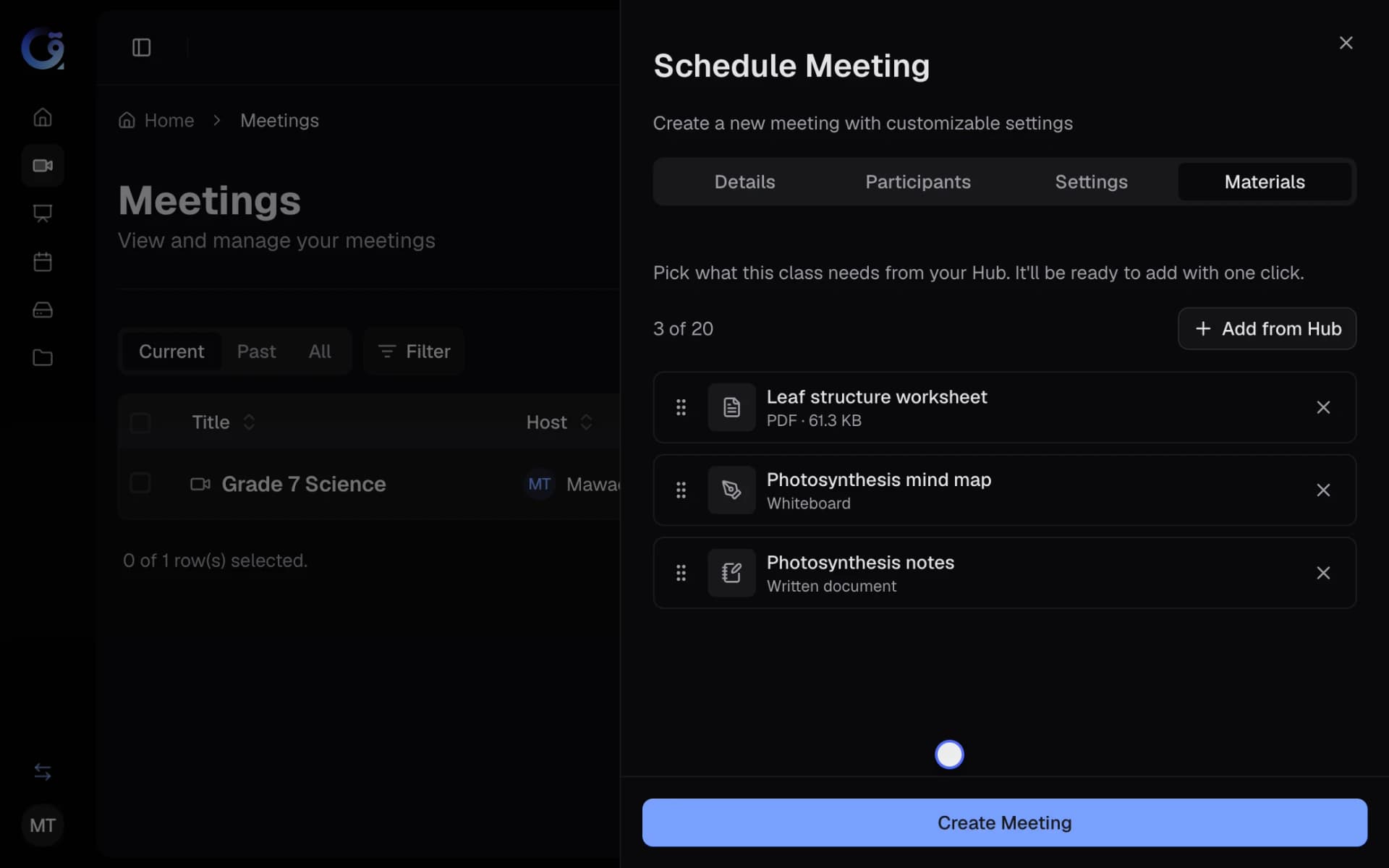
Choose what the class needs from your Hub while you schedule it.
Open full-size screenshot in a new tabPrepare your lessons in the Hub
Keep everything for a class in one place. In the Hub, create a folder for the class, then add what you will teach.
- Upload PDF, PowerPoint and Word files.
- Create a Whiteboard or a Text Document, starting from a template such as Mind Map or Cornell Notes.
- Double-click any item to preview it, then choose Open. Whiteboards open with their template.
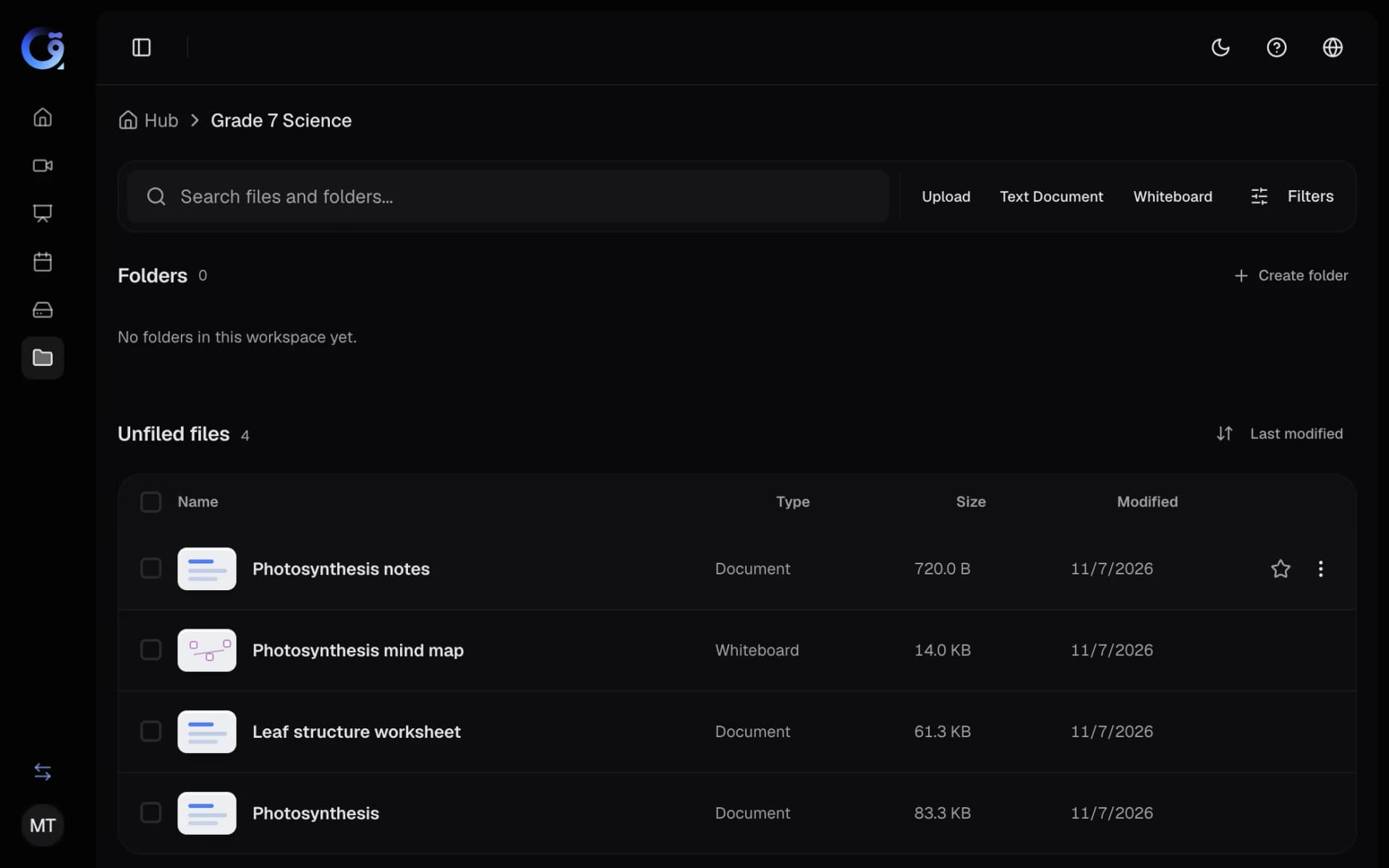
One folder per class, with files, whiteboards and documents together.
Open full-size screenshot in a new tabBring your Hub into the meeting
Choose Present, then Add material, then File, then From Hub to present a PDF, PowerPoint or Word file from your Hub without uploading it again.
- Search your Hub by name. Files over 20 MB are listed but cannot be chosen.
- Under Whiteboard, choose From Hub to open a Hub whiteboard as a meeting tab.
- Hub whiteboards are now saved in the Hub itself, so drawings are kept and each board opens with its template.
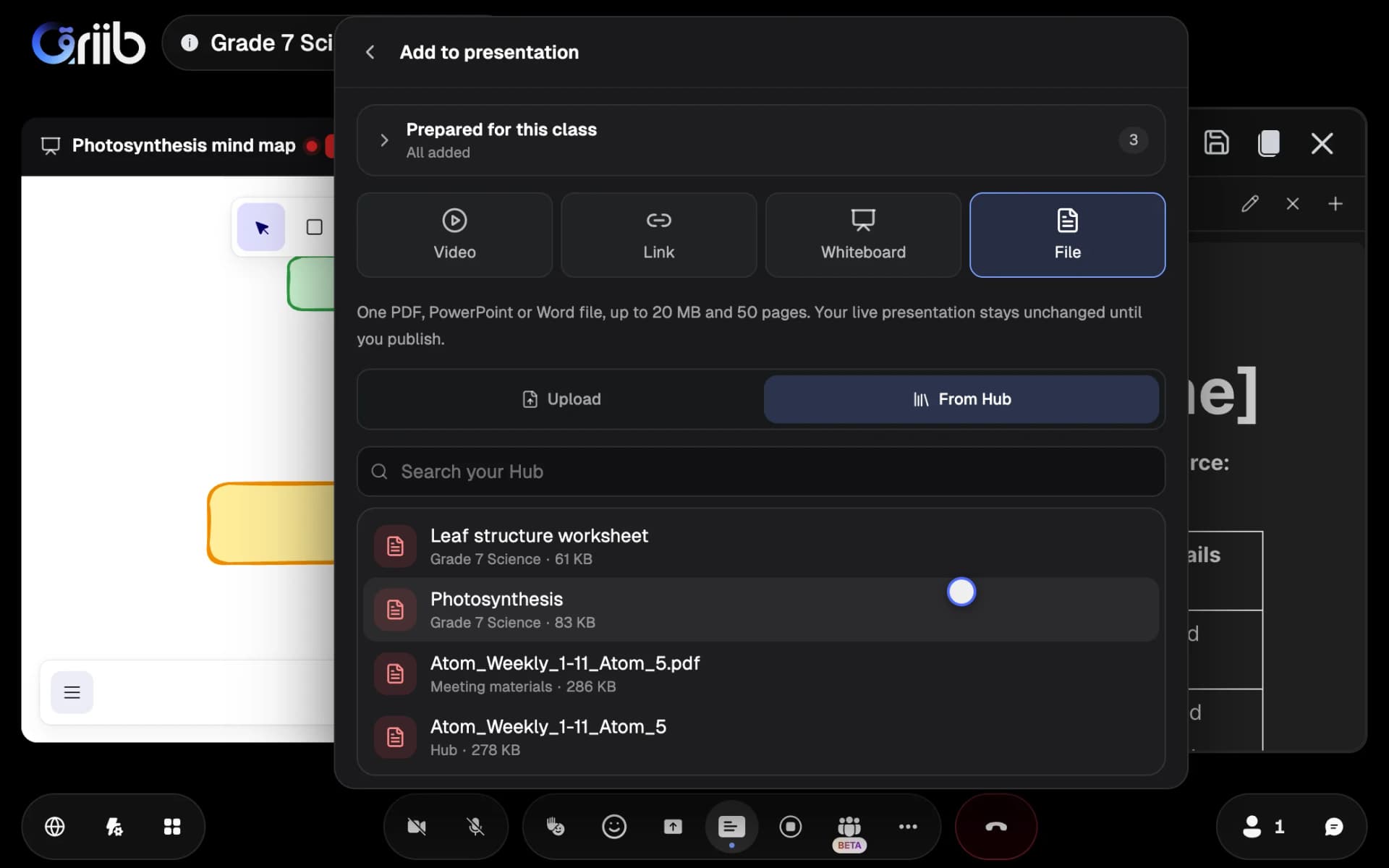
Present a file from your Hub without uploading it again.
Open full-size screenshot in a new tabSave to your Hub, and find it later
Choose Save to my Hub to keep what you made in class. Everything you save goes to the Meeting materials folder in your Hub.
- Files are saved with your drawings, up to 64 MB. Save to my Hub is in the download menu of a file.
- Save any meeting whiteboard with Save to my Hub above it.
- In the notepad, Save to my Hub saves the tab you are on.
- In the Hub, open, move or download what you saved.
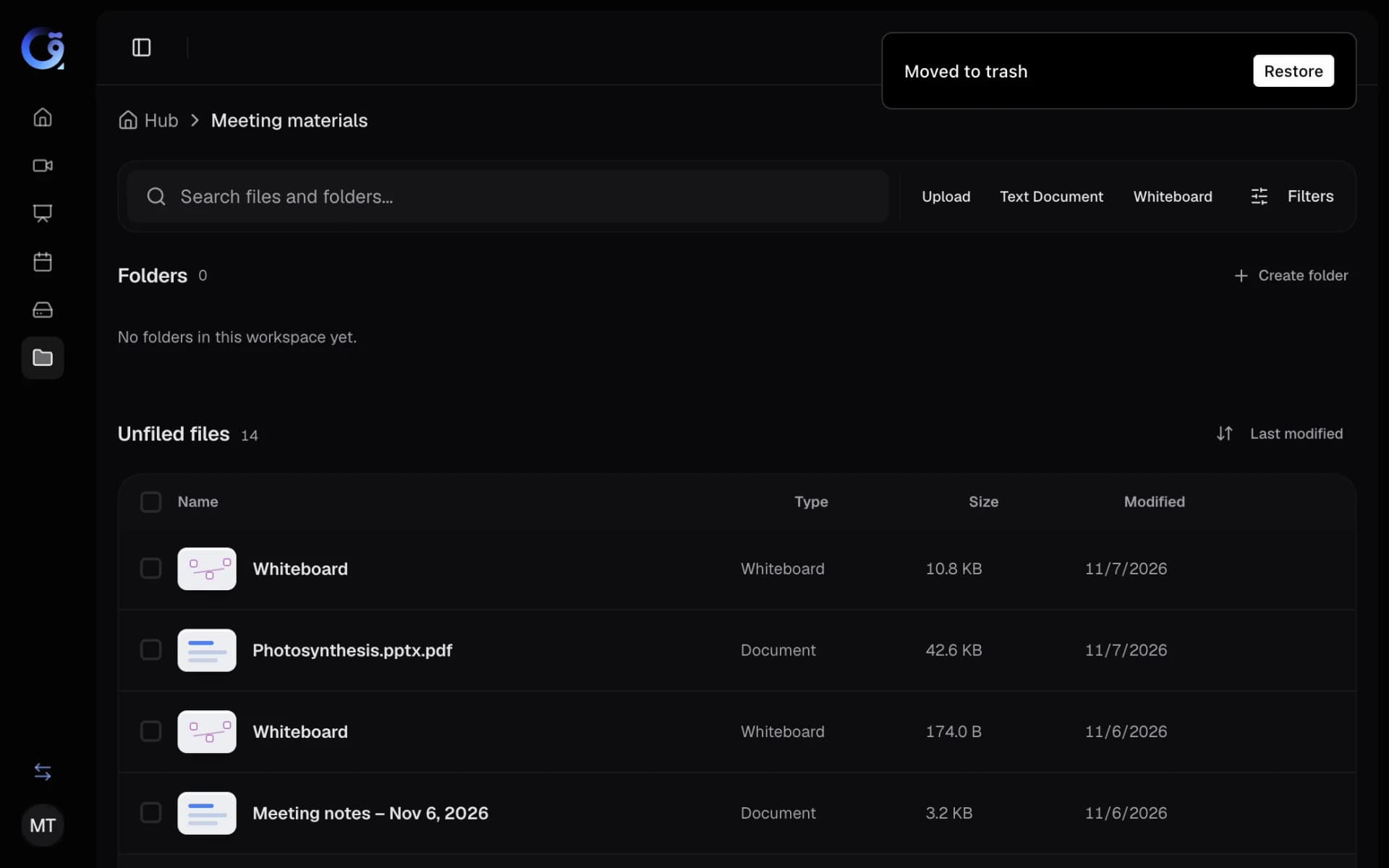
What you save from a meeting is in the Meeting materials folder.
Open full-size screenshot in a new tabPresent PowerPoint and Word files, and share the whole file
PowerPoint and Word files are presented just like PDFs: they are converted automatically, and you can draw on them and move between their pages. Files can be up to 20 MB and 50 pages.
- Everyone in the meeting gets the whole file. They can scroll through every page, follow the presenter when they change page, and return with Back to the presenter's page.
- Download a file With drawings or Original, and choose all pages, the current page, or specific pages such as 1-3, 5.
- Turn on Students can download for each file. It is off by default.
- A dot on Present and on File shows that a file is still importing, even after you close the menu.
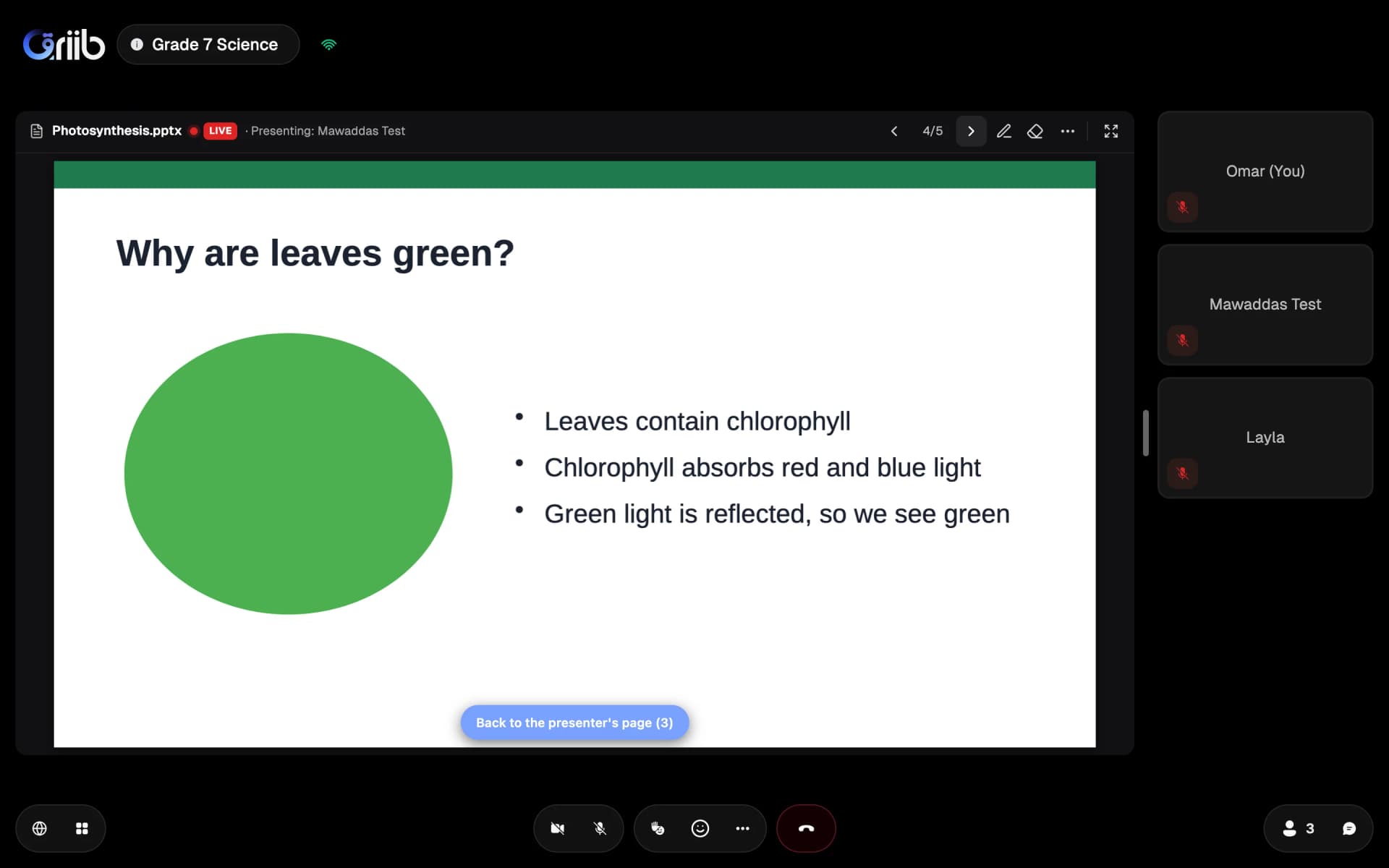
Students can read ahead in the whole file, then return to the presenter's page with one click.
Open full-size screenshot in a new tabOrganize the shared notepad in tabs
The shared notepad can now hold up to 20 tabs. Anyone who can edit the notepad can add, rename and delete tabs. Everyone sees the same tabs live, and each person chooses which tab to read.
- Add from Hub opens a document in a new tab named after it.
- Adding a document from Prepared for this class opens the notepad for you.
- Save to my Hub saves the tab you are on.
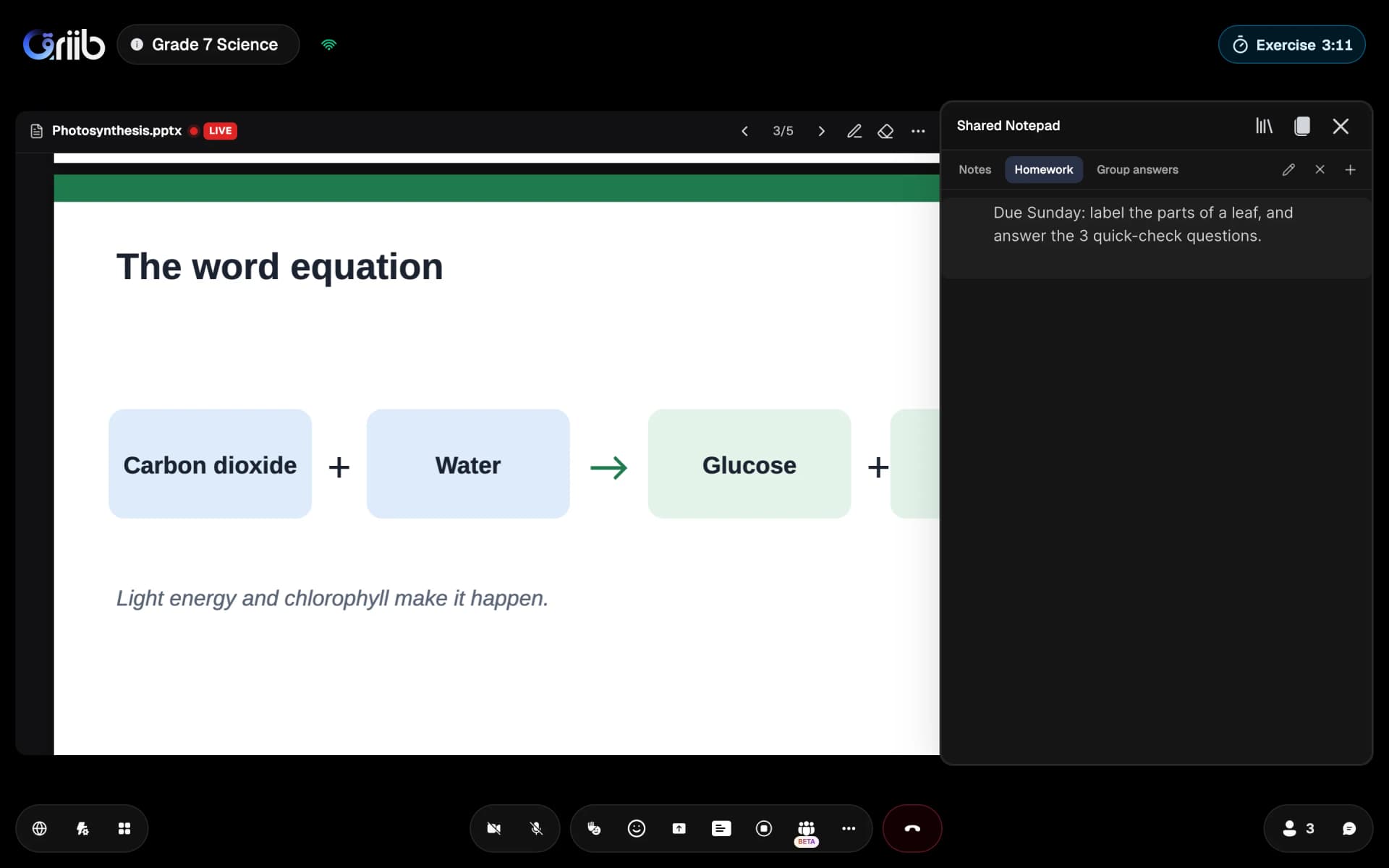
Everyone sees the same tabs, and each person chooses which tab to read.
Open full-size screenshot in a new tabNew tools for running a class
Hosts get new controls to keep a class organized.
- Raised hands appear in the order they were raised, with a count in the top bar. Lower all lowers every hand at once.
- With Mute on entry, people join with their microphone off. Hosts can turn it on or off during the meeting.
- The Exercise timer is shown to everyone and never runs past the end of the meeting.
- For shared videos, choose Watch together so everyone sees the same moment, or On their own so each person controls playback.
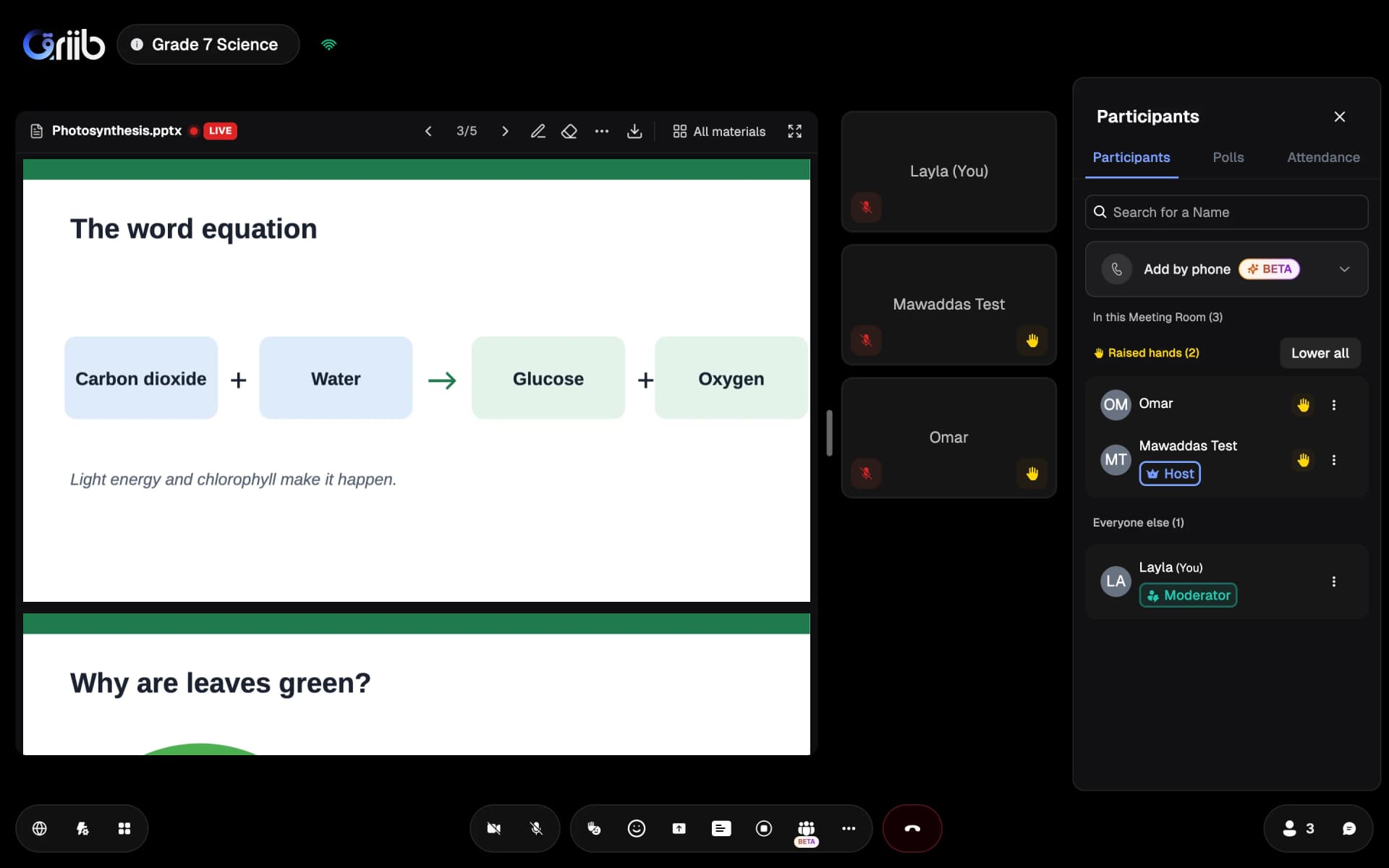
Raised hands appear in the order they were raised, and Lower all lowers every hand at once.
Open full-size screenshot in a new tabSet one layout for everyone
In Adjust view, hosts can use For everyone to put every participant on the same layout, and Let everyone choose to give the choice back.
- Participants see who changed the layout. The message fades after 5 seconds.
- Anyone can switch back to their own layout at any time.
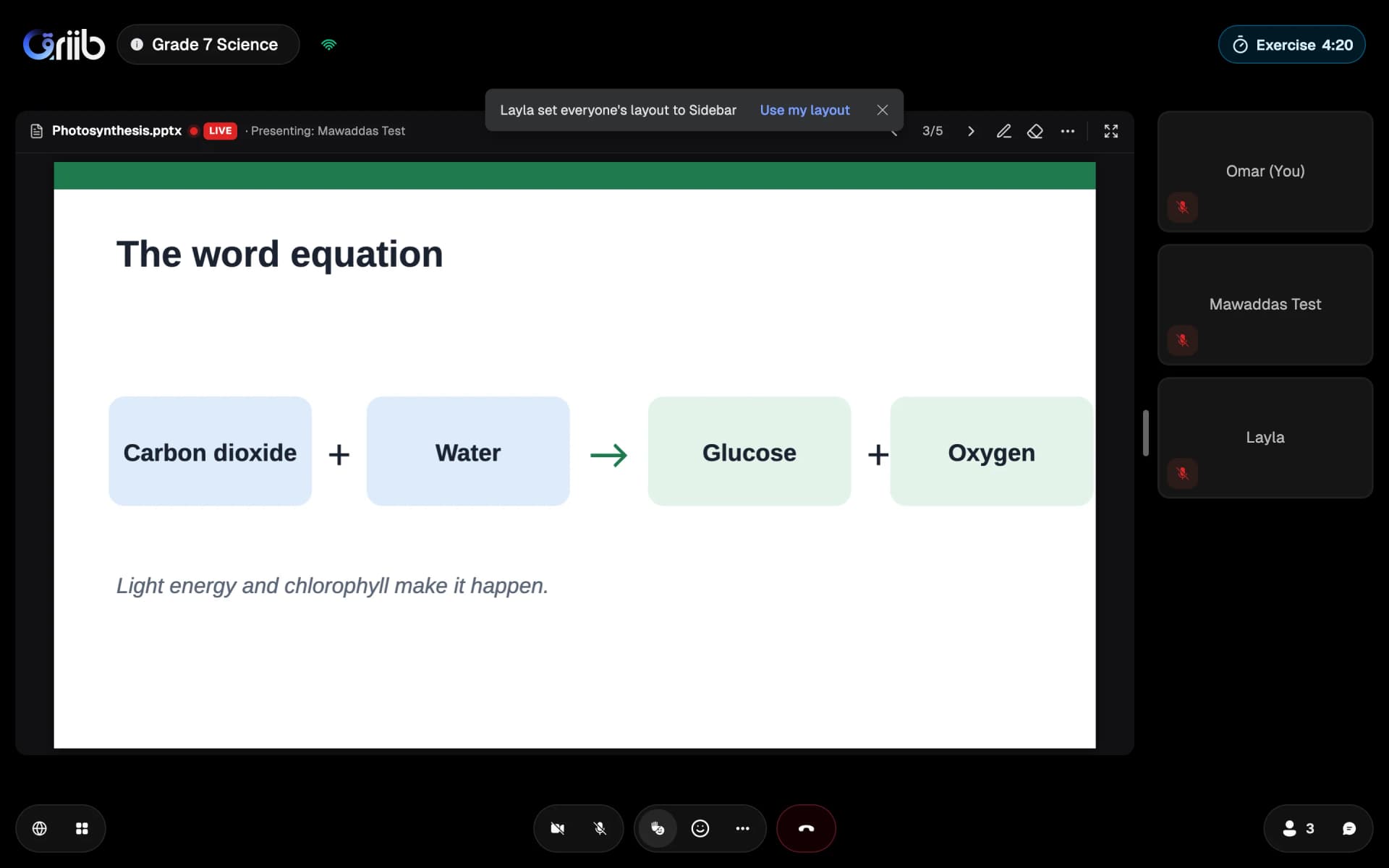
Participants see who changed the layout, and can switch back with Use my layout.
Open full-size screenshot in a new tab