

Walkie-talkie channels for your team
Open Walkie-talkie to find the channels you belong to in your organization. Open a channel to see who is in it and who is online, and connect to start listening.
A channel you are listening to shows Listening in the list, so you can tell at a glance where you are connected.
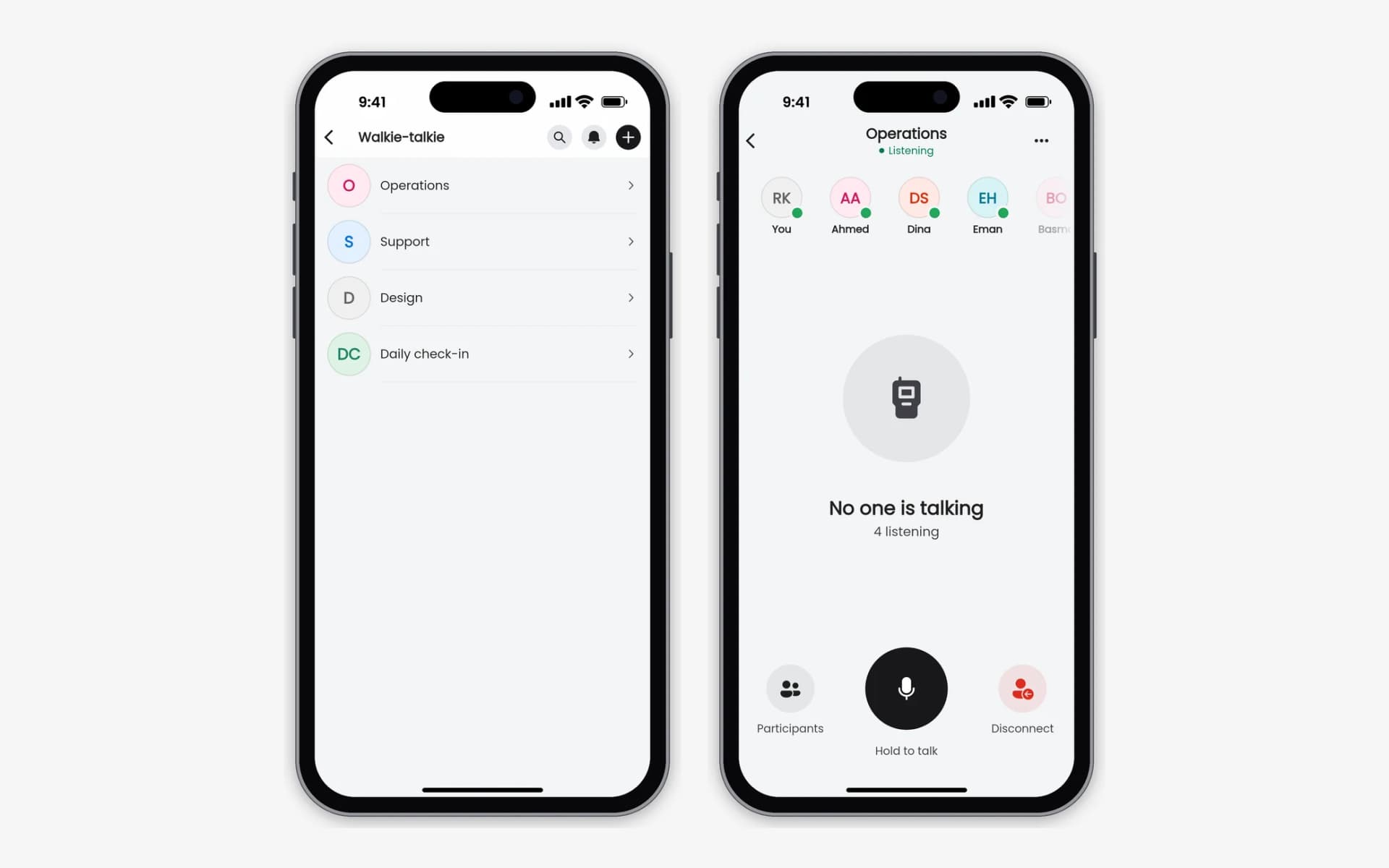
Your channels in Walkie-talkie, and a channel that is free to talk.
Open full-size screenshot in a new tabCreate a channel in a few steps
- Give the channel a name of 3 to 40 characters. The same name is shown in English and Arabic.
- Choose people from your current workspace. You are included automatically.
- Choose how members listen: Manual, to connect when they choose, or Background, to keep listening with the app closed.
- If the connection drops while you create a channel, Qriib checks what happened before you try again, so you don't end up with two channels.
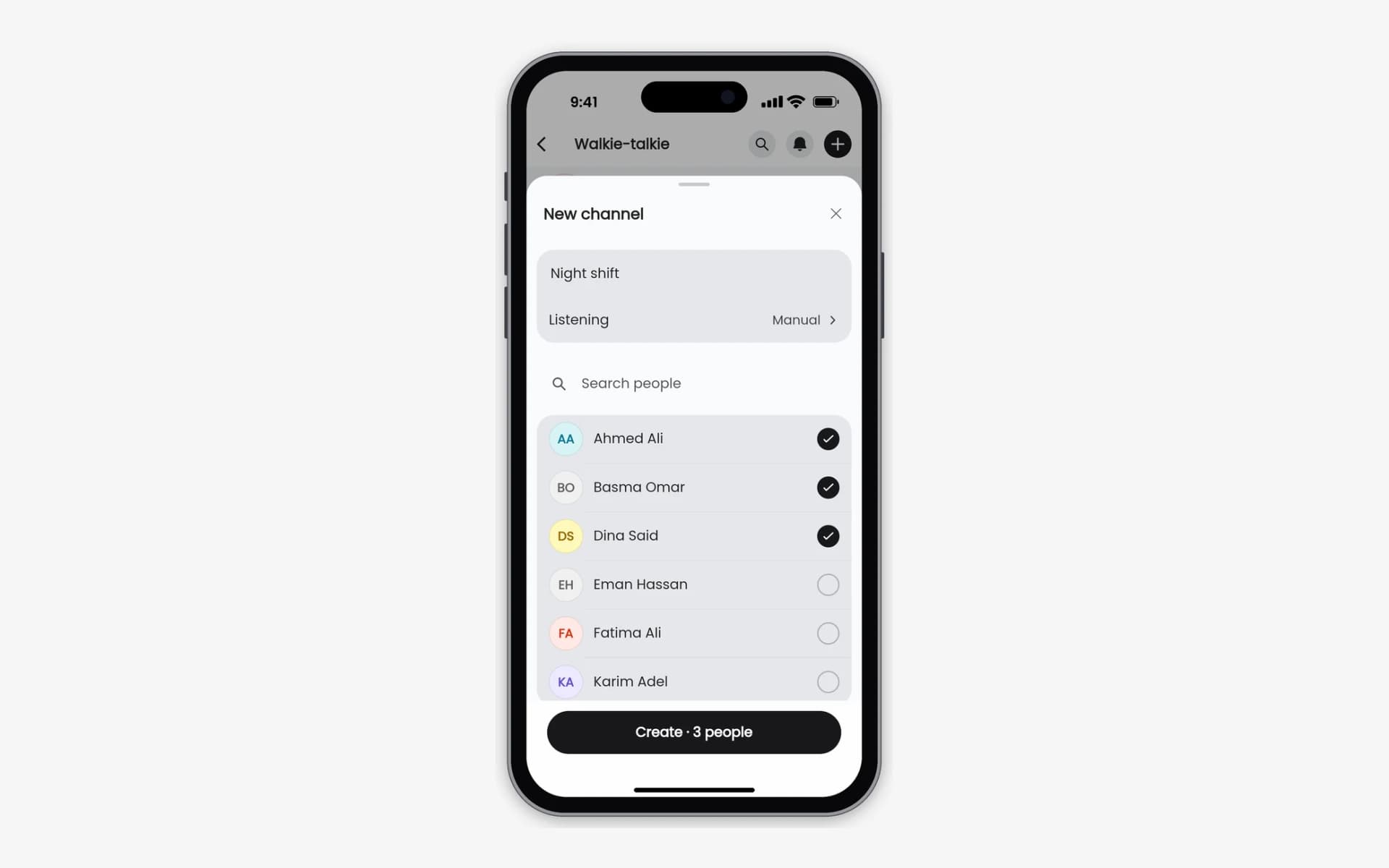
Name the channel, choose members from your workspace, and choose how they listen.
Open full-size screenshot in a new tabHold to talk, let go to listen
- Press and hold Hold to talk to speak. Everyone listening in the channel hears you live.
- One person talks at a time, so nobody talks over anyone else. While someone else is talking, the talk button waits until the channel is free.
- A countdown shows how much of your turn is left, and tones tell you when you are live and when the channel is free again.
Qriib asks for microphone access the first time you talk. Your microphone is on only while you talk, and Walkie-talkie is live only: nothing is recorded.
Always know who has the channel
The person talking fills the screen with their name and picture, and their place in the people row lights up. When the channel is free, it says No one is talking and shows how many people are listening.
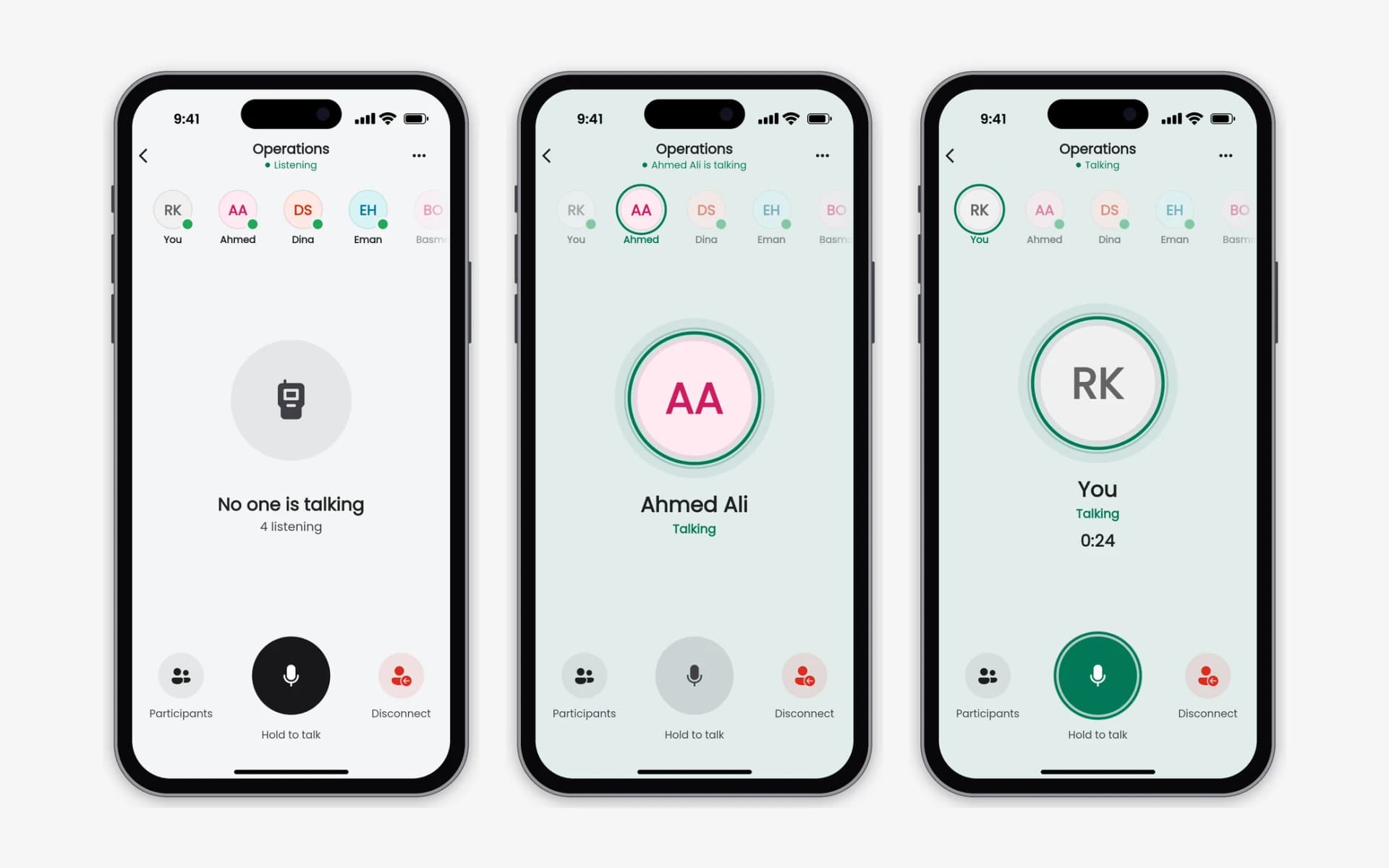
A free channel, someone else talking, and your turn.
Open full-size screenshot in a new tabInvite someone to listen, and answer invitations
Need someone who isn't connected right now? Open Participants in the channel and choose Invite. They get a private invitation with a short countdown, and you can see whether it was accepted, declined or expired. An invitation never connects anyone or turns on a microphone on its own.
- When you are invited, an alert shows who invited you and to which channel. Choose Listen to join, or Decline.
- Missed it? Find pending invitations under Invitations in the channel options, and answer them there.
- Turn Invitation alerts off for a channel if you don't want to be alerted. Pending invitations stay quietly available in the app.
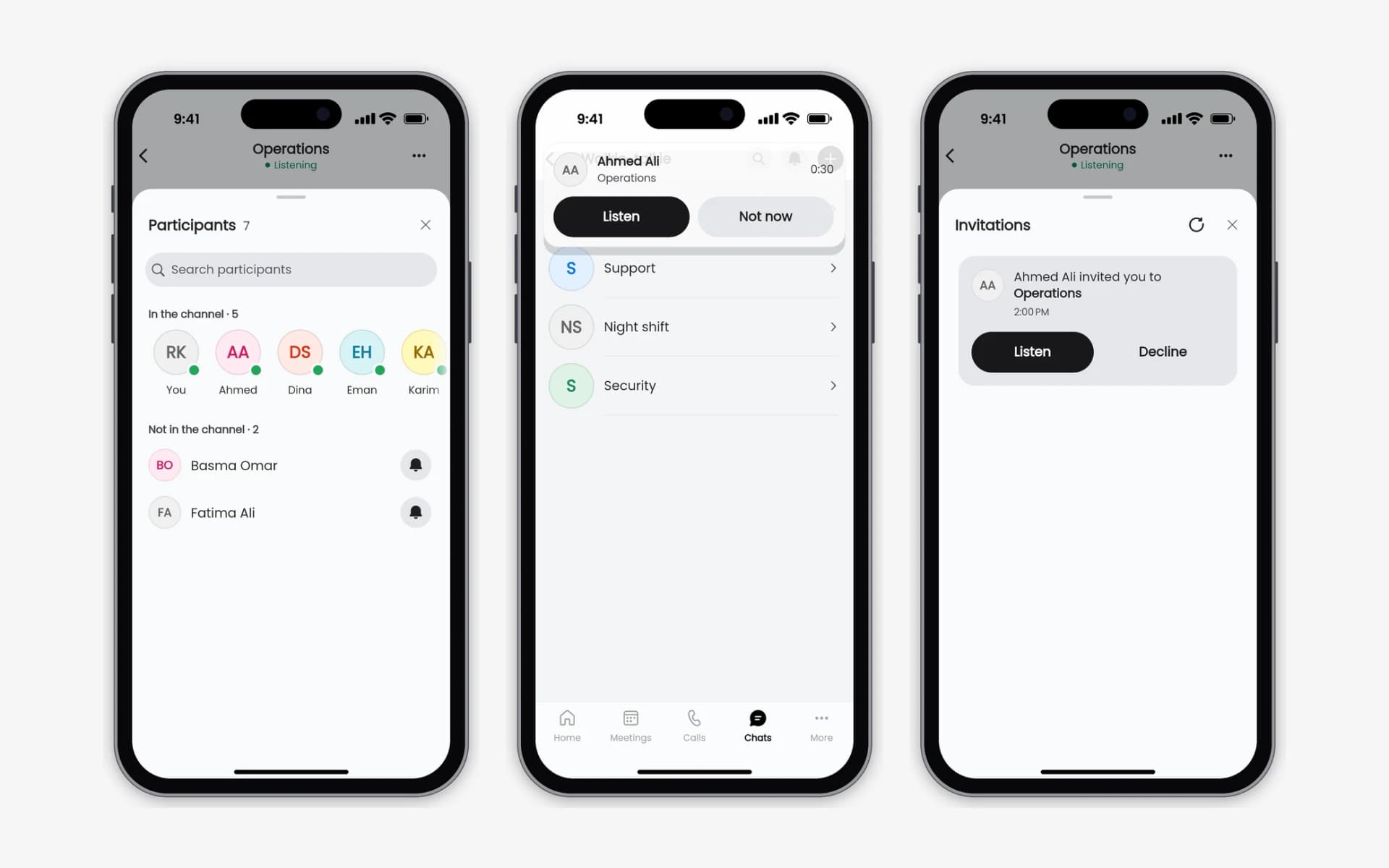
Invite someone to listen, and answer an invitation with Listen or Decline.
Open full-size screenshot in a new tabKeep listening in the background
Turn on Listen in the background for a channel to keep hearing it with the app closed or the screen locked. Your microphone stays off. A banner takes you back to the channel, and you can disconnect at any time.
- On Android, an ongoing notification shows while you are listening.
- On iOS, Walkie-talkie uses the system Push to Talk controls.
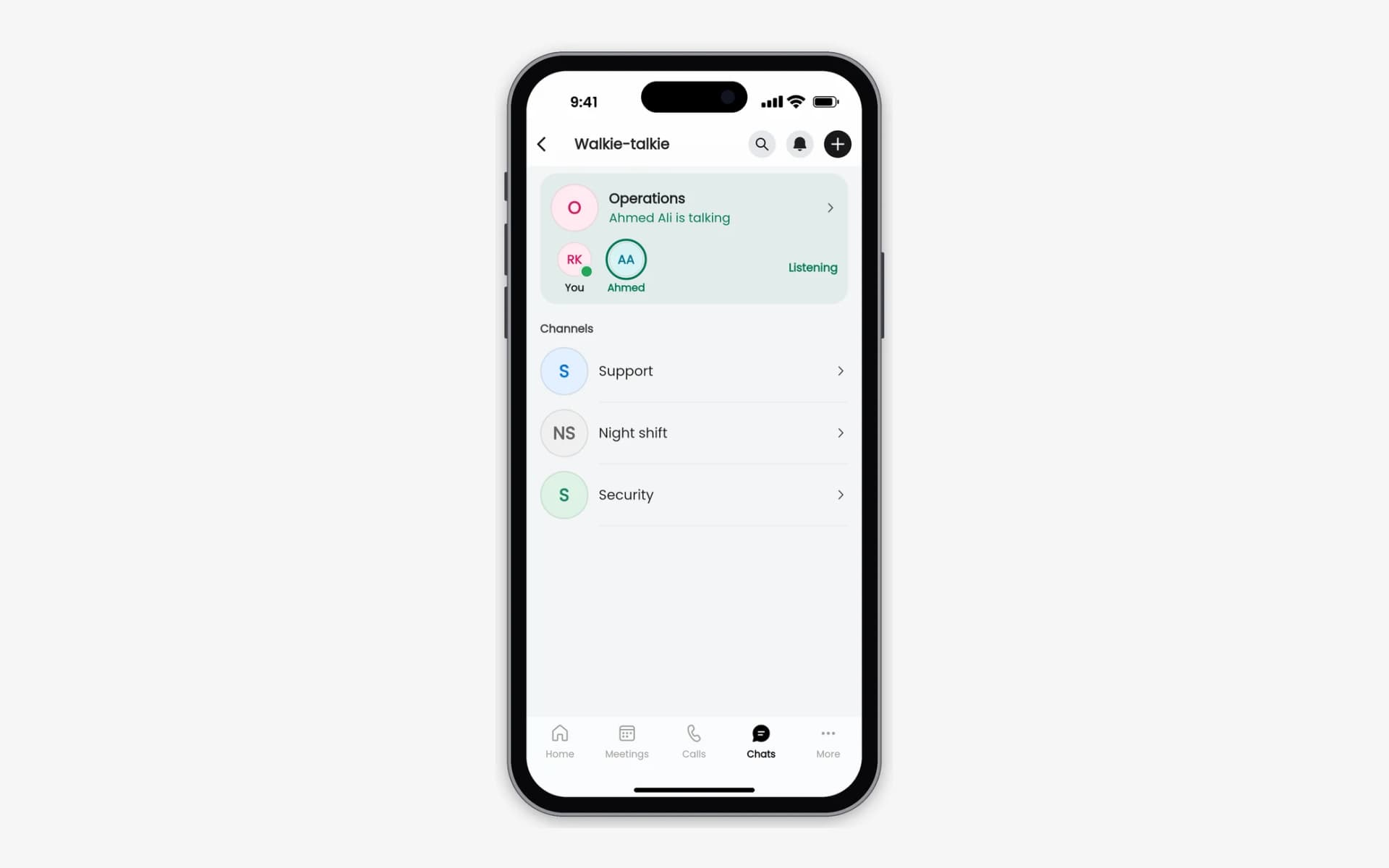
The channel you are listening to stays live at the top of your list. Tap it to return.
Open full-size screenshot in a new tabCalls come first
Phone calls and Qriib calls and meetings pause listening. The channel shows Paused while you're on the call, and listening resumes when it ends. If your connection drops for a moment, Qriib reconnects you to the channel.
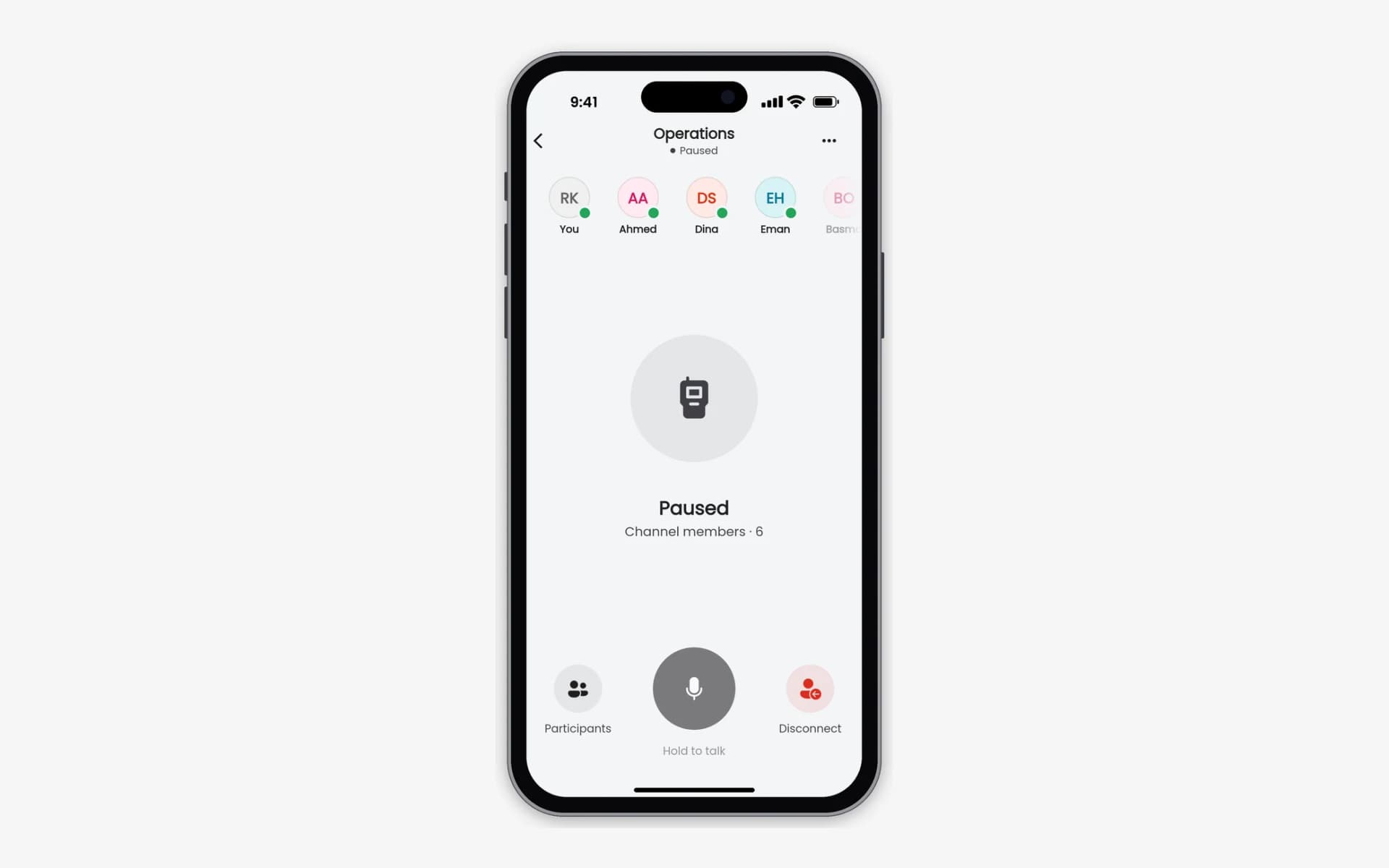
Listening pauses during a call and resumes when it ends.
Open full-size screenshot in a new tabManage your channels
Channel admins manage a channel from its options:
- Rename the channel.
- Members: add people from your workspace, or remove someone after a confirmation. A removed member loses access to the channel.
- Delete channel: see how many members lose the channel and who is listening now, then confirm.
Anyone can choose Leave channel to stop getting a channel. If you are the last member, leaving deletes the channel, and Qriib tells you before you confirm.
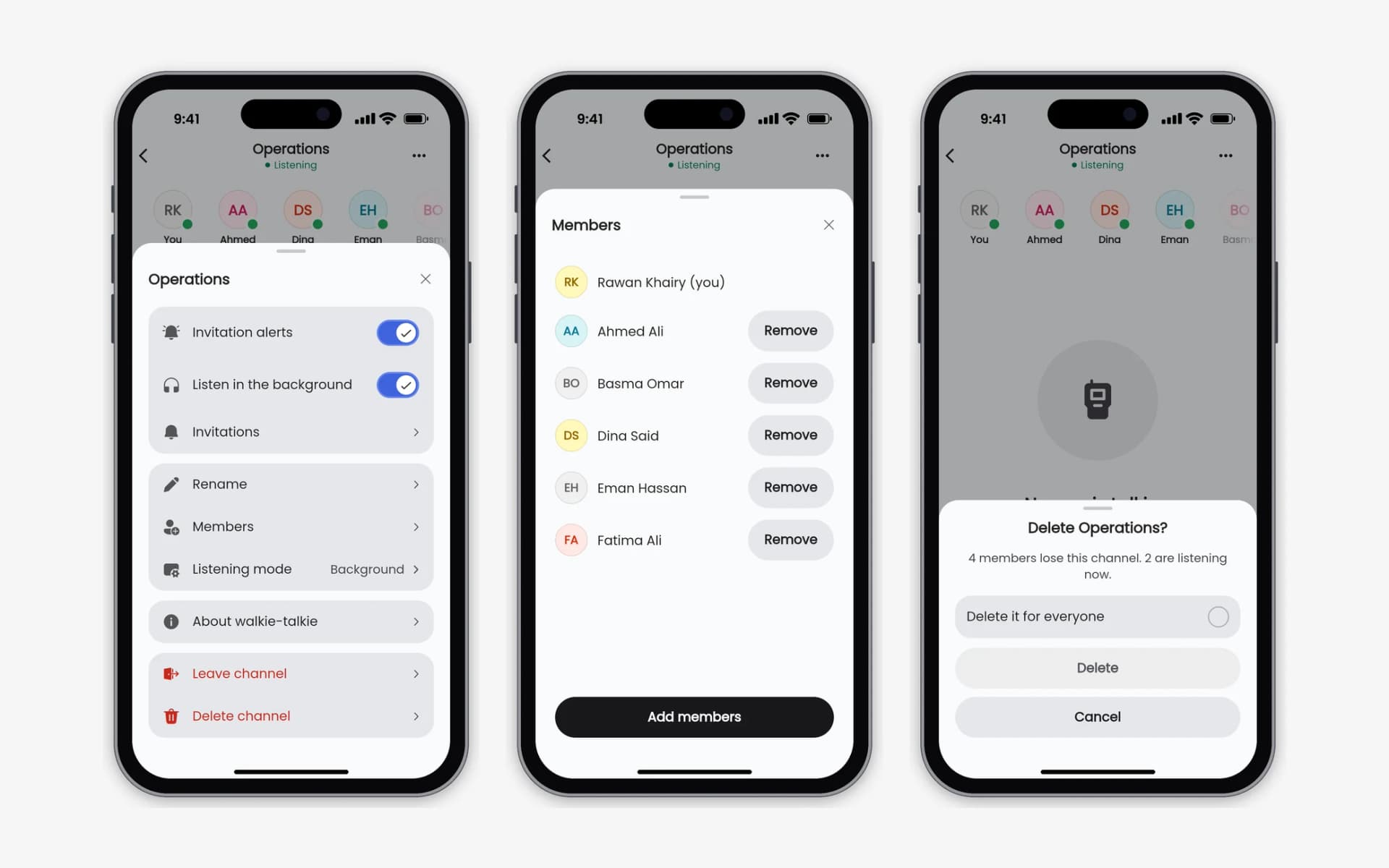
Channel options, members, and deleting a channel.
Open full-size screenshot in a new tabWalkie-talkie in your bottom bar
- Open More and choose Bottom bar. The bar opens for editing.
- Drag PTT into the bar, then tap Done.
- Your channels are now one tap away. Choose Reset in the same place to go back to the original bar.